Popular


Step-by-Step: Create and Configure Quiz Activity in ModernLMS
Step 1: Access the Course
-
Log in to ModernLMS with Teacher/Admin role.
-
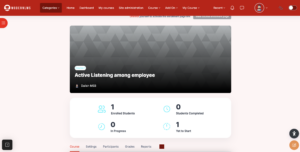
Navigate to the required Course.
-
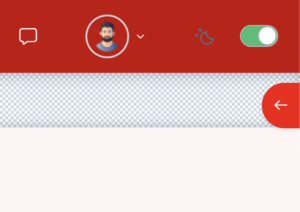
Click Turn editing on.
Step 2: Add Quiz Activity
-
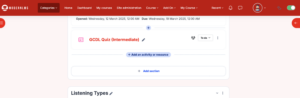
In the desired course section, click Add an activity or resource.
-
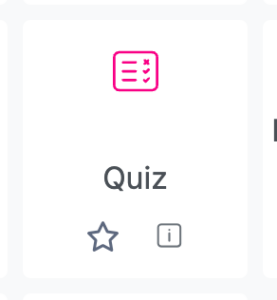
Select Quiz.
Step 3: Configure General Settings
-
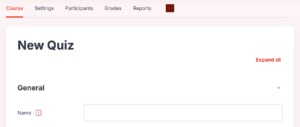
Enter Quiz name.
Step 4: Configure Timing
-
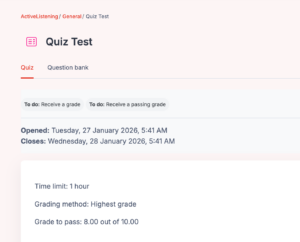
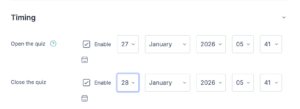
Set Open the quiz date and time.
-
Set Close the quiz date and time.
-
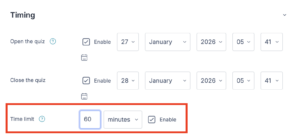
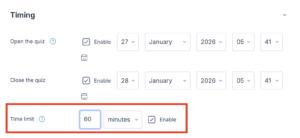
Define Time limit (optional).
-
Enable When time expires → Open attempts are submitted automatically.

Step 5: Configure Grade Settings
-
Define Attempts allowed.
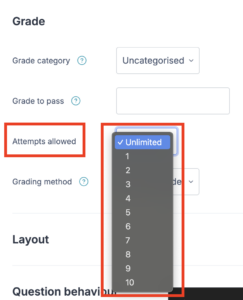
-
Choose Grading method:
-
Highest grade
-
Average grade
-
First attempt
-
Last attempt
-
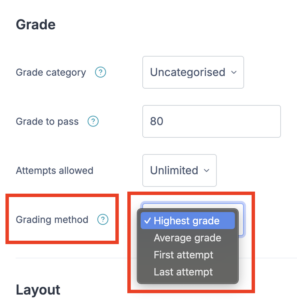
-
Set Passing grade if required for completion.
Step 6: Configure Completion Settings
-
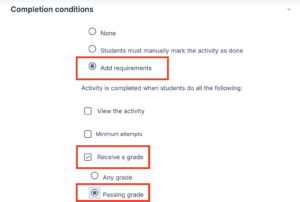
Enable Completion conditions.
-
Select completion condition:
-
Student must attempt quiz
-
Student must receive a passing grade
-
Step 10: Save Quiz Settings
-
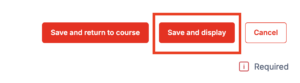
Click Save and display.
Step 11: Add Questions to Quiz
-
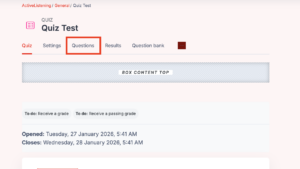
Click Questions.
-
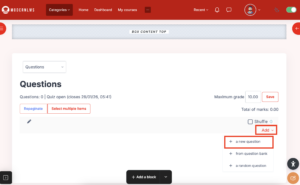
Click Add:
-
Add a new question
-
-
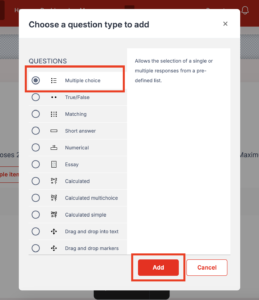
Set Choose a question type to add and click Add
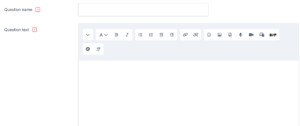
- Set Question name andQuestion text.
-
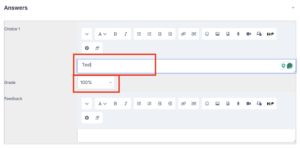
Input the Choice and Grade.
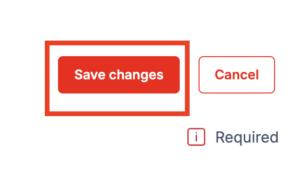
- Save changes.
Step 12: Preview and Test Quiz
-
Click Preview.
-
Attempt the quiz as a learner.