

Popular


To create a course in the LMS, log in to the dashboard and navigate to Admin / Site Administration.
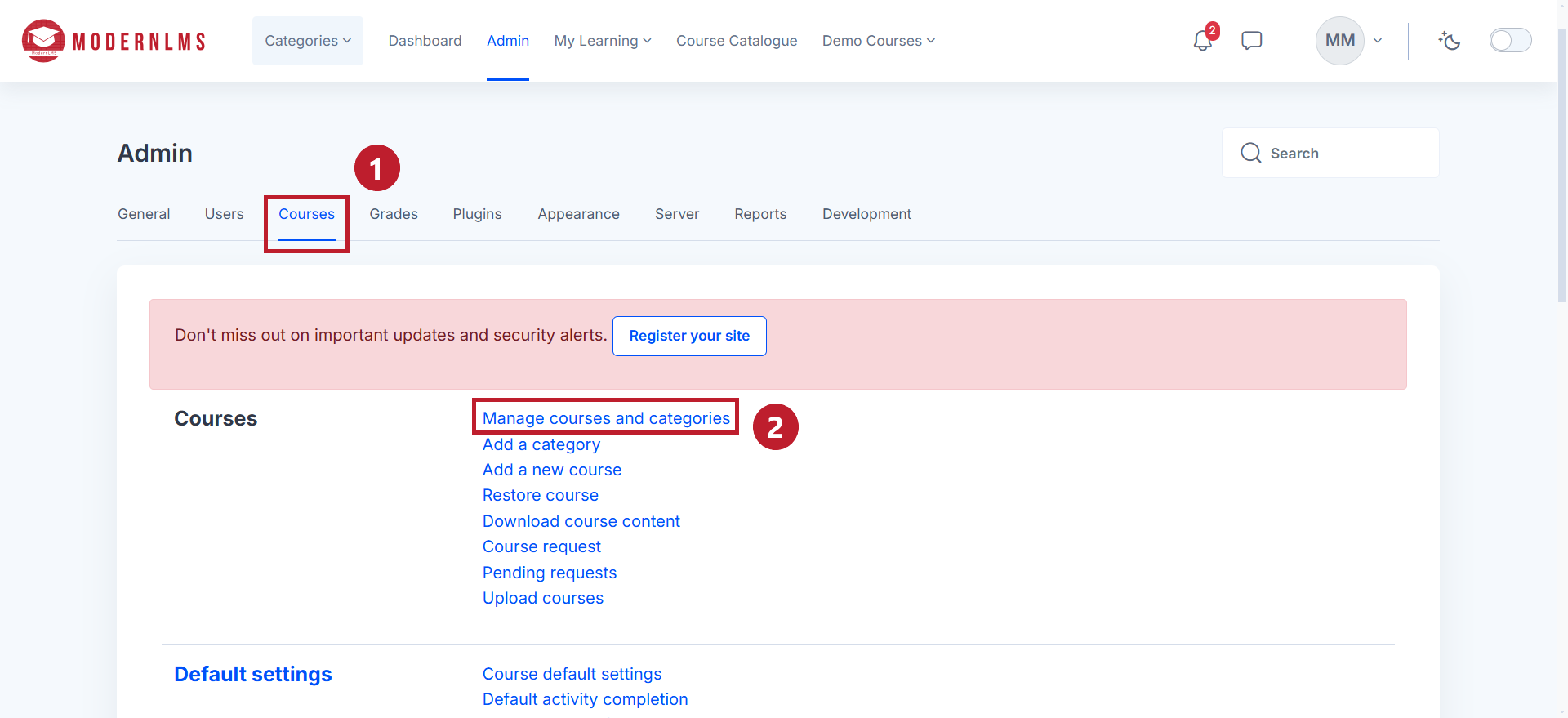
Under the Courses tab, click on Manage Courses and Categories.
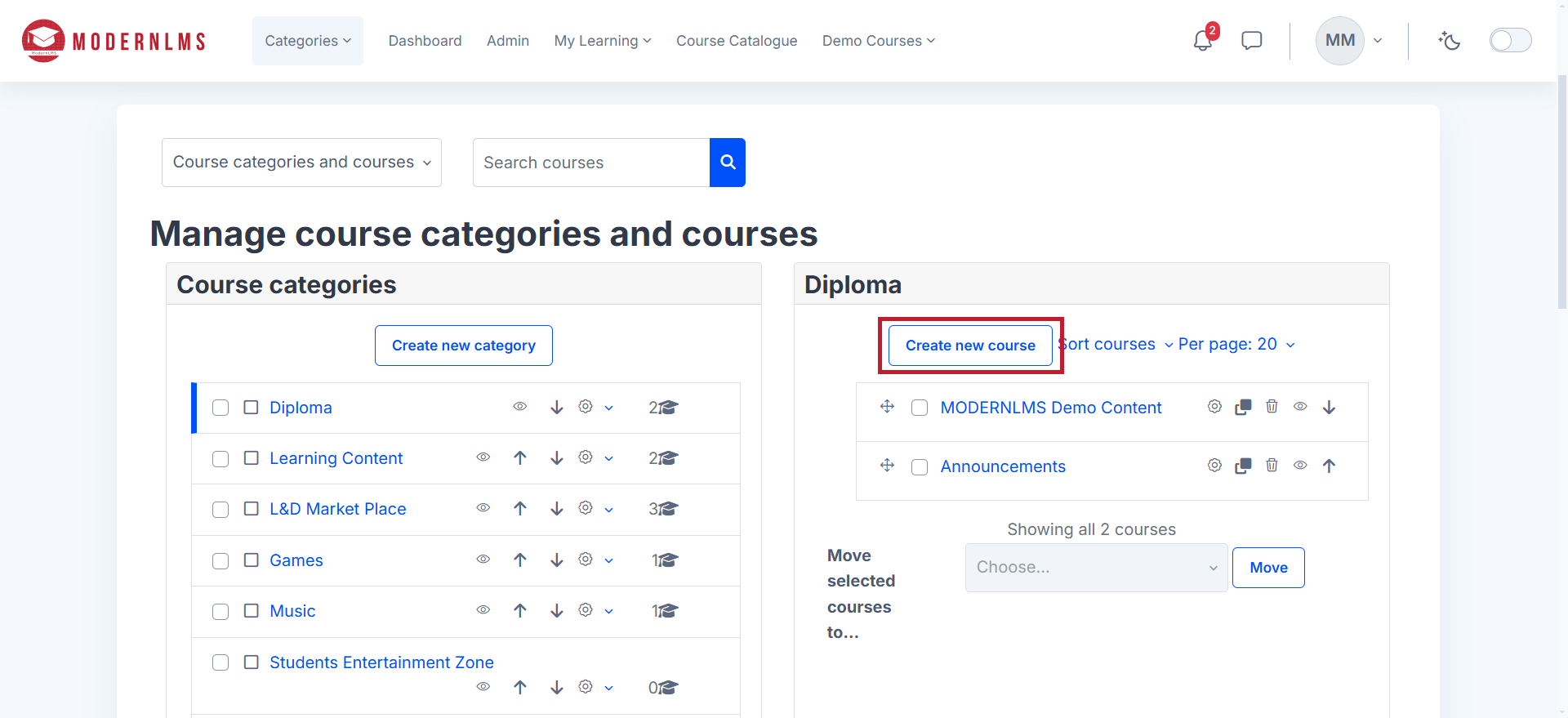
Next, click on Create new course. The Courses section is on the right hand side of the page. Diploma is the category that has been selected from the left side.
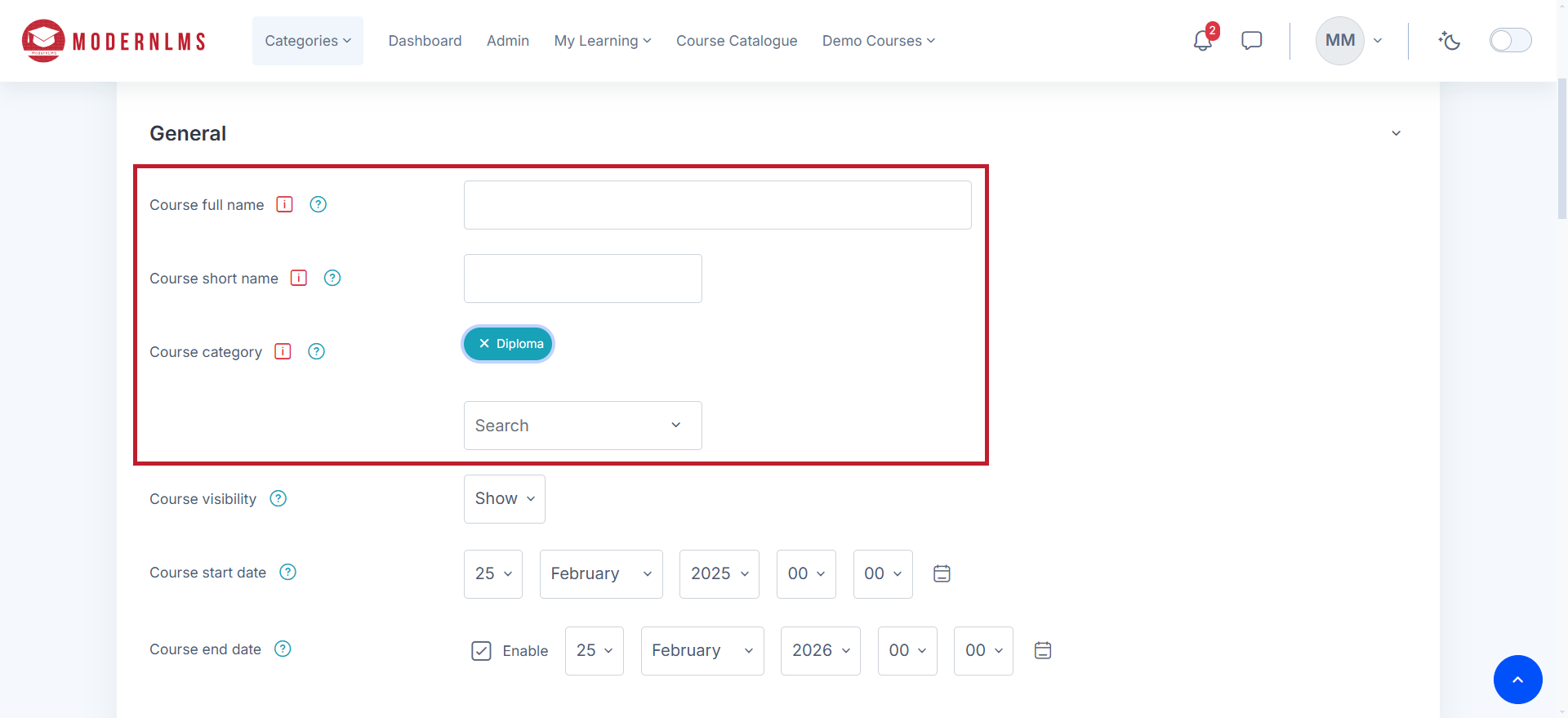
Enter the course full name, short name, and course category, then configure the course settings such as start date, visibility, and course format. Additional settings like enrollment methods, grading, and completion tracking can also be adjusted.
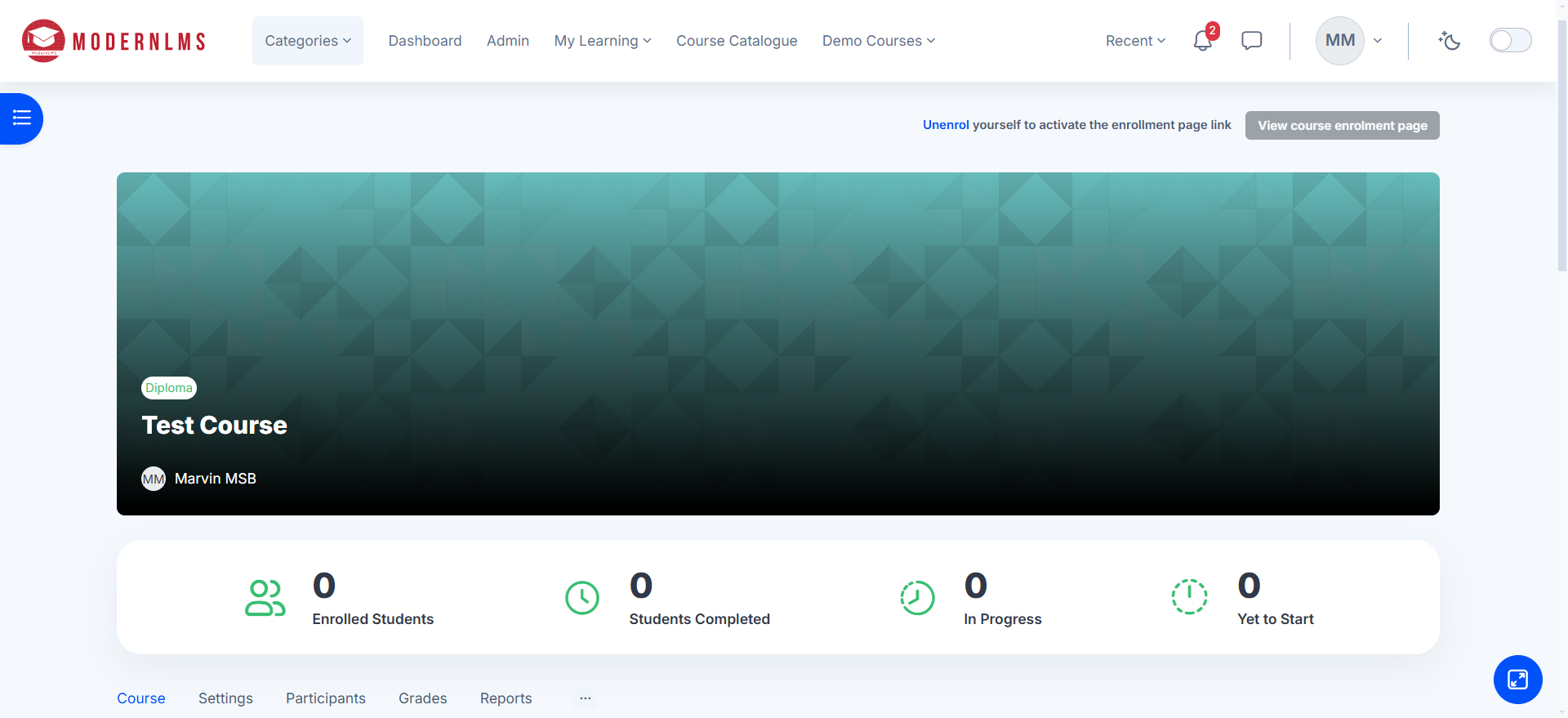
Once all details are entered, click Save and display to finalize the process. You will be brought to the new course that you have created. If you wish to go back to Manage courses and categories instead, click Save and return.