Popular
Steps to bulk inactivate users in LMS:
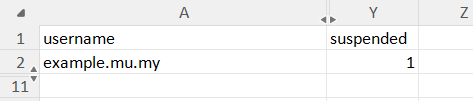
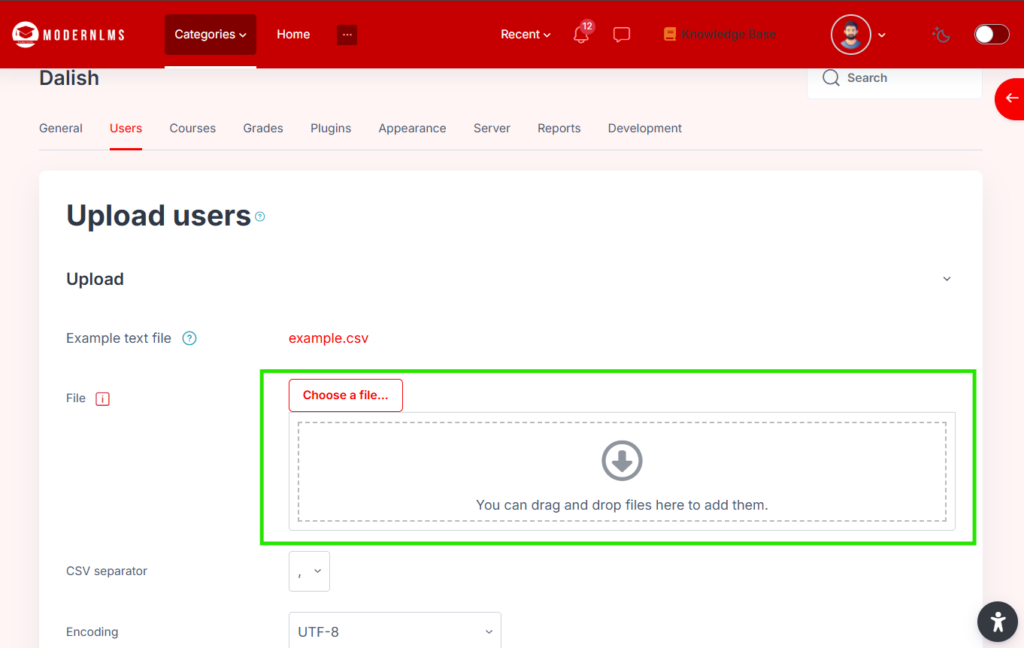
Prepare the CSV file
Add a column named:
suspended
For users you want to inactivate, set the value to:
1
Example:
username,suspended
[email protected],1
[email protected],1
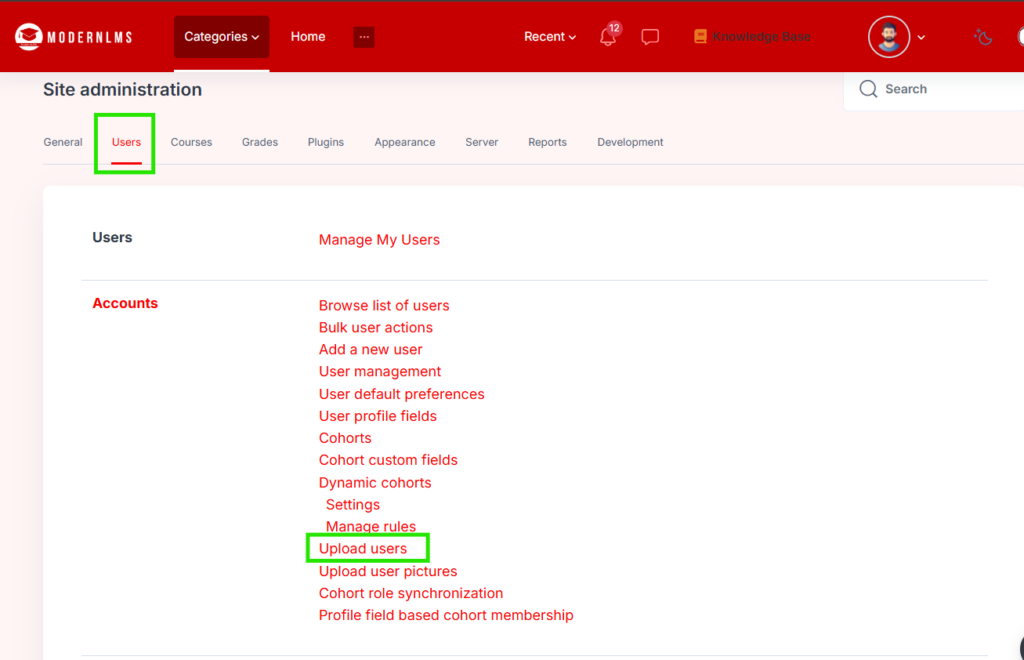
Go to:
Site administration > Users > Accounts > Upload users
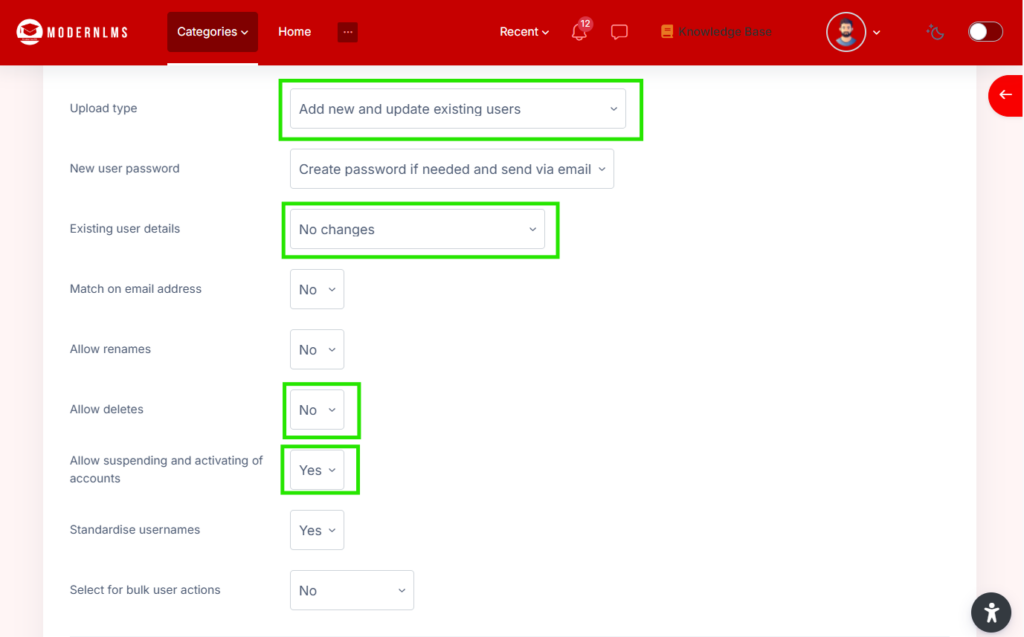
On the upload preview page, configure the settings as below:
Upload type: Update existing users onlyExisting user details: No changesAllow suspending and activating of accounts: YesAllow deletes: No
Review the preview carefully
Make sure the correct users are listed and the suspended value is set to 1.
Recommended: test with 1 or 2 users first before running the full bulk update.