Popular


EntraDesk Bulk User Import Guide
Welcome to the official EntraDesk guide. This document provides step-by-step instructions on how to use the bulk user upload feature within the system, complete with expected outcomes to ensure a seamless process.
Step 1: Access the Admin Console
Log in to your organization’s EntraDesk Admin Console and navigate to the main dashboard landing page.

Step 2: Navigate to Employee Listing
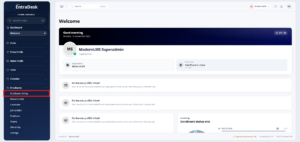
From the dashboard navigation sidebar menu, click on Employee Listing.
Step 3: Initiate Bulk Import
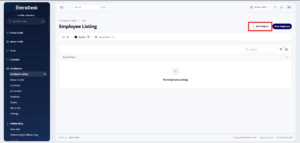
Click on the Bulk Import button to proceed to the import module.
Step 4: Download the Template
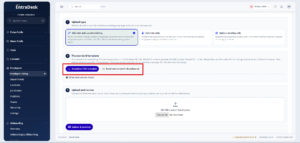
On the Bulk Import page, download either the CSV or Excel file template by clicking the respective download buttons. (Note: For this guide, we will use the Excel template).
Step 5: Fill Out the Template
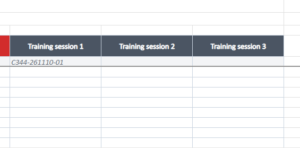
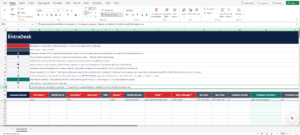
Open the Excel file and enter the user details into the appropriate cells. Column headers are color-coded to indicate requirement levels:
-
RED Headers (Required Fields): These cells must contain valid data in order to successfully create or update a user profile.
-
GREY Headers (Optional Fields): These cells are optional and can be left blank if no data is available.
-
Additional instructions and guidelines are also listed within the template itself.
Note: Required and optional fields can be customized based on your organization’s specific business needs.
Step 6: Save and Upload the File
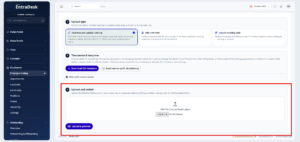
Once you have completed and saved the Excel file, return to the Bulk Import page. Upload the file to the dedicated upload area by clicking to browse or by dragging and dropping the file. Finally, click the Upload & Preview button.
Step 7: Review and Confirm
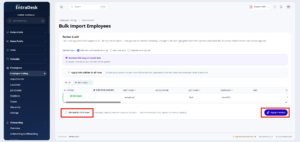
Review the list of users scheduled to be added or updated in the system.
-
If the data is correct, click Apply [Number of Users] row(s) to finalize the import.
-
If changes are needed, click Discard & start over to cancel the operation.
The users that has been added will get an invitation and login instructions and temporary generated credentials in their email inboxes.
Additional Information
-
-
Auto-Enrollment Upon Upload
-
This feature automatically enrolls users into a session based on the session number specified in the user’s data row upon file upload.
-
Prerequisite: Ensure that the session and session number have already been created in the system prior to uploading.
-
-