

Popular
- Assessment Ranged Rubric
- Content Protection (Secure PDF)
- Attendance
- Assessment Rubric
- ModernLMS Course Reminders
- Viewing and Extracting Course Completion Report
- Course Completion Configurations & Setups
- Questionnaire / Feedback Responses
- How to Create and Insert H5P Content from Content Bank
- Completion Tracking
- Re-Engagement Activity
- Gradebook Setup
- Set Default Activity Completion
- Common Activity Settings
- H5P
- File
- Page
- Quiz
- Assignment
A. Create or Open the Assignment
- Log in to LMS as a Teacher / Lecturer.
- Open the relevant Course.
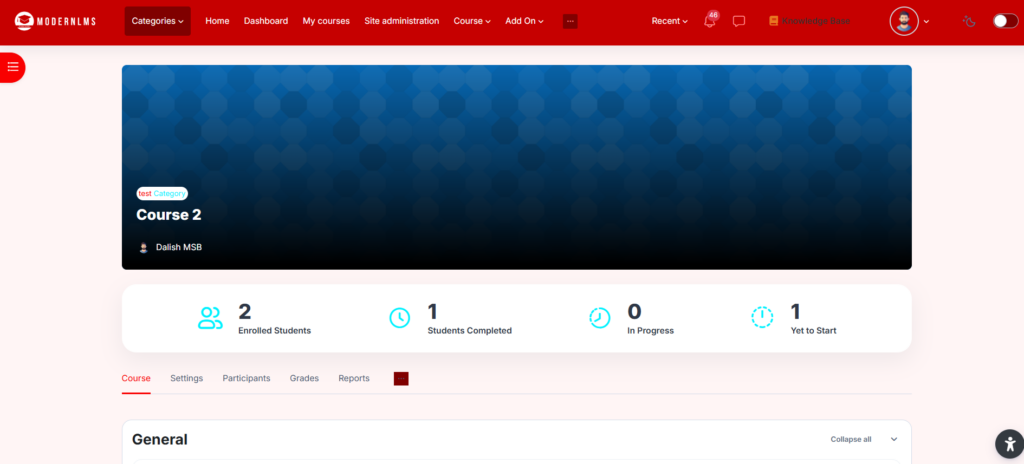
- Turn Edit mode ON.
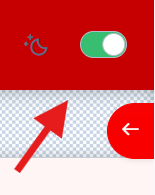
- Either:
- Open an existing Assignment, or
- Click Add an activity or resource → Assignment.
- Configure the assignment name, submission settings, due date, and other required settings.
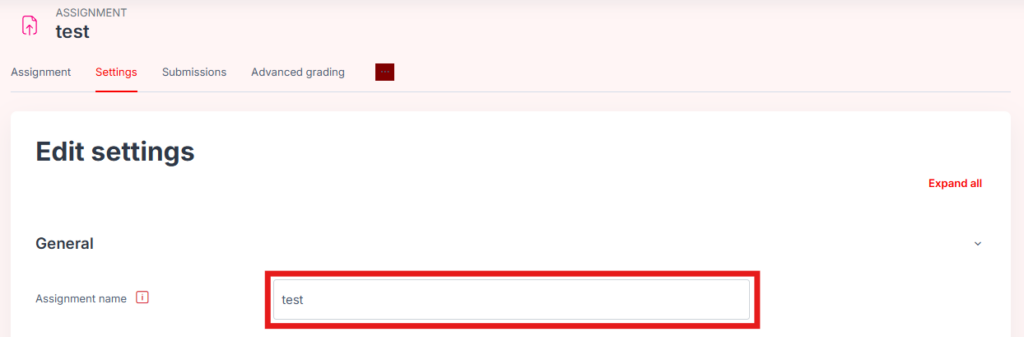
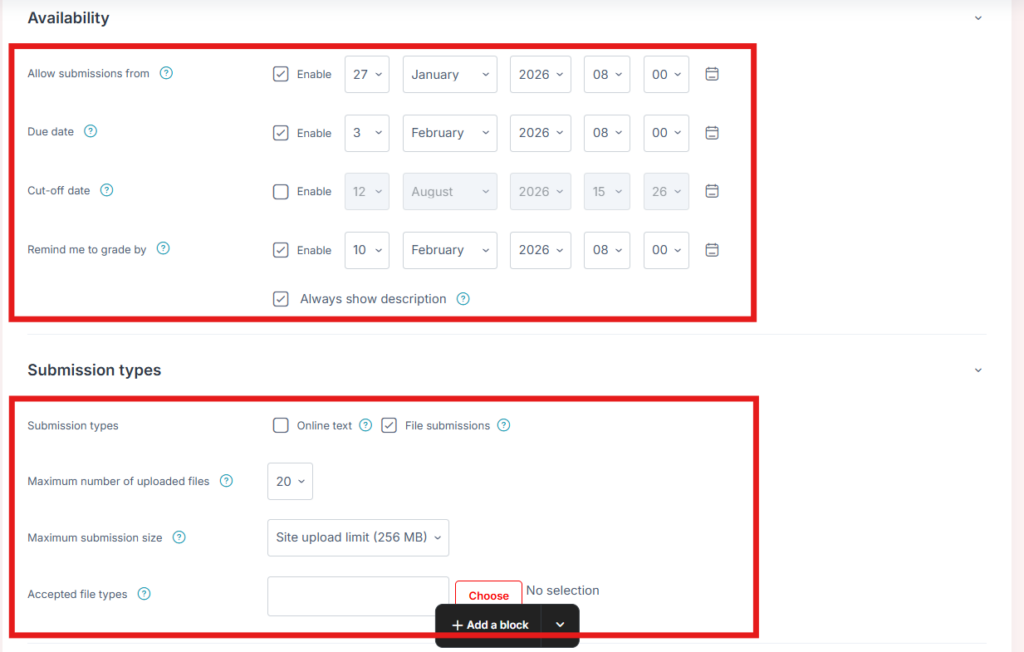
LMS Assignment supports advanced grading methods such as rubrics.
- Click Save and display.

Step 2: Enable Rubric Grading
- Open the Assignment.
- Click Settings.

- Expand Grade section.

- Set:
Grading method:
Ranged Rubric

- Click Save and display.

Step 3: Create the Rubric
- In the Assignment page:
- Click:
More → Advanced grading
or
Assignment administration → Advanced grading
- Select:
Define new grading form from scratch

Step 4: Add Rubric Criteria
Example:
| Criteria | Level 1 | Level 2 | Level 3 | Level 4 |
|---|---|---|---|---|
| Understanding | Poor | Basic | Good | Excellent |
| Presentation | Not clear | Some clarity | Clear | Very clear |
| Accuracy | Many errors | Some errors | Minor errors | No errors |
For each criterion:
- Click Add criterion.
- Enter the criterion name.
- Add performance levels.

Step 5: Set Ranged Marks (Scale)
For each level, define the mark range.
Example:
Criterion: Understanding (10 marks)
| Level | Range |
|---|---|
| Excellent | 9–10 |
| Good | 7–8 |
| Average | 5–6 |
| Poor | 0–4 |
Enter:
- Maximum points
- Minimum points
Example:
Excellent
10 / 9
Good
8 / 7
Average
6 / 5
Poor
4 / 0
Step 6: Set Maximum Grade
Go back to Assignment settings:
Grade → Maximum grade
Example:
100
Ensure the rubric total matches the assignment grade.
Example:
Criteria:
- Content = 40 marks
- Analysis = 30 marks
- Presentation = 30 marks
Total:
100 marks
Step 7: Save Rubric
Click:
Save rubric and make it ready

The rubric will now appear when lecturers grade submissions.
Step 8: Lecturer Grading
When grading:
- Open student submission.
- Click Grade.
- Rubric appears.
- Lecturer selects the appropriate level.
- Moodle automatically calculates the marks.
Example:
Student receives:
- Content: Good = 35/40
- Analysis: Excellent = 30/30
- Presentation: Average = 20/30
Final score:
85/100
Difference between Normal Rubric and Ranged Rubric
Normal Rubric
- Each level has a fixed mark.
Example:
- Excellent = 10
- Good = 8
- Average = 5
Ranged Rubric
- Each level has a mark range.
Example:
- Excellent = 9–10
- Good = 7–8
- Average = 5–6
Ranged Rubric gives lecturers more flexibility when grading.

