Popular


In this documentation we will guide to how to extract and get the report of participants in a course and if they had completed the course by following and completing the conditions that was configurated in a specific course that they were enrolled in.
Pre-requirements: You can only extract a course with configurated course completions. This option won’t be available for the course that has no completion conditions or hasn’t yet to be configurated. You can learn how to properly configurate completion conditions by following the following provided documentation link
Documentation URL: Course Completion Configurations & Setups
1. Accessing the LMS
Log into the LMS
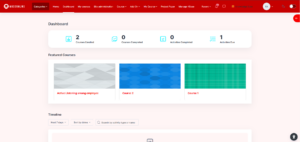
2. Go to the course
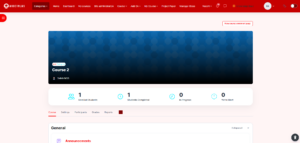
Navigate to the designated course that you would wish to configure the course completion conditions towards.
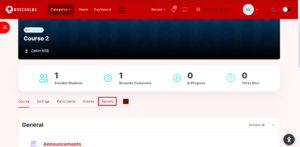
3. Go to Course Reports
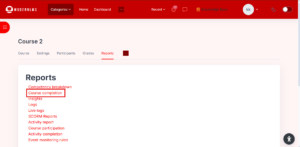
Click on Reports located in the settings and options bar at the top of the course
4. Click Course Completion
Click on Course Completion to view, manage participant’s current completion progression towards the course.
4. Participants/Course Completion Table
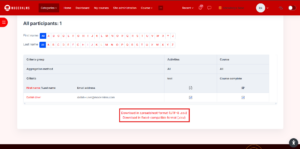
In this page, a table will be displayed that represents every participants and their current completion progress towards the contents of the course. Do note that only activities or resources that was chosen or selected as a course condition completion will appear in this table.
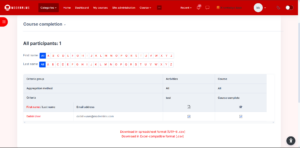
- The tick in the tick-box means that the user has completed the activity and completed the course
.
- Do note that the user will only get to record as course completed if the final tick-box with the indication named “Course Completed” was ticked.
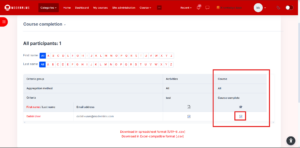
4. Extracting Course Completion Report
In this page you can also extract and download the course completion data report for external auditing or external data management purposes in your organization. You can choose and click which format would you like to download this report as, Spreadsheet Format (UTF-8 .csv) or Excel compatible format (.csv)