

Popular


Welcome to the ModernLMS Ticket Management Guide! Once you have logged a support request in our system, tracking its progress and communicating with our team is straightforward. This section of the documentation will guide you through navigating your customer portal dashboard to monitor, review, and update your active requests. Following these steps ensures you can easily check ticket statuses, review engineer findings, and upload any additional logs or verification screenshots requested by our technical team.
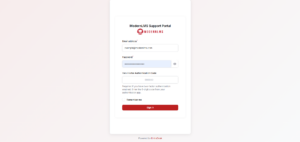
Access the Support Portal
Visit https://support.modernlms.com/ and click “Sign in” at the top right corner.
- Log In
Enter the login credentials provided to you.
Landing Page/Dashboard
-
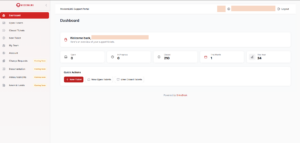
Directed to Dashboard
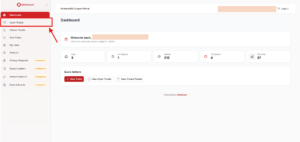
Once logged in, you’ll be directed to the dashboard, where all your submitted tickets are displayed.
View List of Created/Open Tickets
- View Tickets
You can achieve this action by using either any of the options.
- Option 1
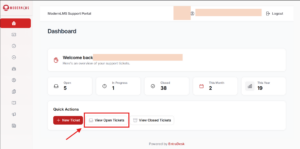
Click on “View Open Tickets” button on the Quick Actions section from the content box of the dashboard.
- Option 2
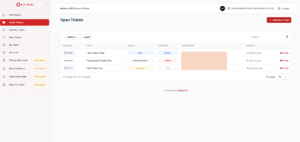
Click on “Open Tickets” button on the sidebar section on the left of the screen.
The “Open Tickets” Page
Once clicked, the portal will re-direct you to the open tickets page, where you can view and catch-up with currently opened tickets and it’s progress.
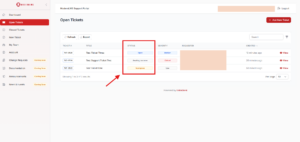
- Status
The status indicates the current state of the ticket to perfectly describe the current situation of the ticket and the respective state of the issue/inquiry/questions/etc that was stated in the ticket.
- Open
Tickets with the “Open” means that the specific ticket was just created and ModernLMS team has not acknowledged it’s creation yet.
- In Progress
Tickets with the “In Progress” status means that the ticket was successfully acknowledged and had first responded by our ModernLMS team.
- Awaiting Customer
Ticket’s with the “Awaiting Customer” status means that the ticket need a response from the requester’s side. This is because our team here at ModernLMS may need more clarification or confirmation from the requester’s side regarding the specific ticket.
Viewing Tickets
-
View the Chronology & History of the Ticket
Click on the “View” button on any specific ticket to view the history and changes that may or may not be made from either the requester’s or ModernLMS side.
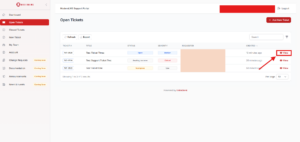
Opened/In Progress Tickets Updates & Operations
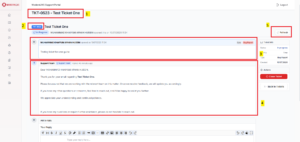
- 1 – Subject
This is the main title of the ticket, entered by requester when initially creating the ticket.
- 2 – Number ID of the Ticket
This is the number identity of this specific ticket. Both parties, requestor and ModernLMS team must use ticket ID to better identify and differentiate a specific ticket from the rest.
- 3 – The Initial Description of the Ticket
This is the first description and justification that was entered during the creation of this ticket by the requester.
- 4 – The First Response
This is the first response that was sent by team ModernLMS, indicating that your ticket was acknowledged and observed for progression.
- 5 – Refresh Ticket
You can use this button to refresh the ticket for the system to appeal to the latest updates, changes and replies from ModernLMS.
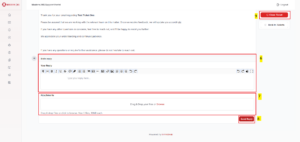
- 6 – Reply Box
This is the textbox where you can type to reply or add more response from your side in the ticket. Additionally, you can also use the provided tools in the top toolbar to further justify your response if needed.
- 7 – Attachment Box
The attachment area is where you can use to attach relating and supporting documents if you wish to share and justify your response even more. Do note that you can only upload up to 5 files with the max size of 10MB each. (e.g .pdf, .xlsx, .csv, etc)
- 8 – Send Reply Button
Once you are satisfied with the descriptions and other justifications and you wish to send this response, click on the “Send Reply” button to send the response for our team to view and initiate towards the ticket.
- 9 – Close Ticket Button
You can click the Close Ticket button at any time if you consider the issue resolved and no further assistance is needed. Our support team may also close tickets on our end once a fix is confirmed or completed. Do note that you cannot re-open closed tickets and suggest to open a new one if needed.