

Popular


View Student Answer Script from Quiz
Step 1: Go to the course
- Log in to the LMS.
- Open the relevant course.
- Click on the quiz activity.
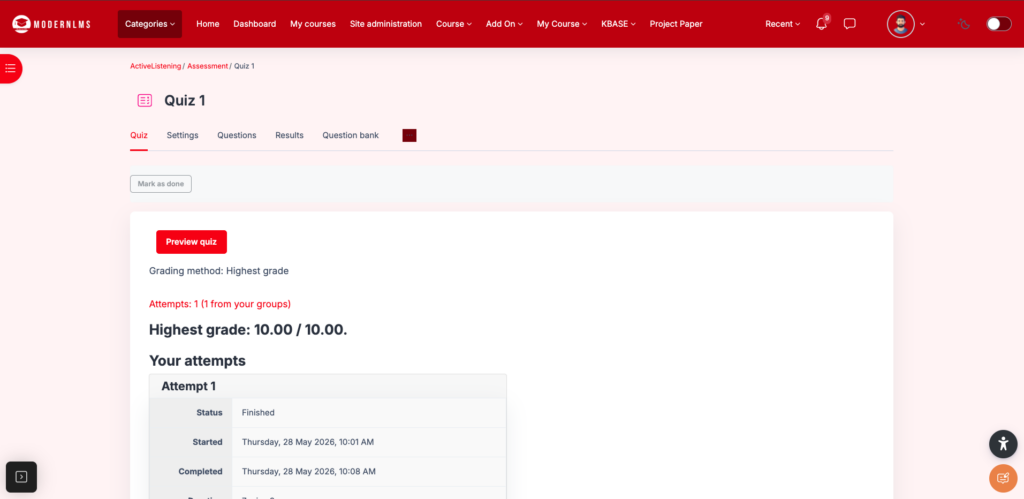
Step 2: Open the quiz attempt report
- Click Results.
- Select Responses.
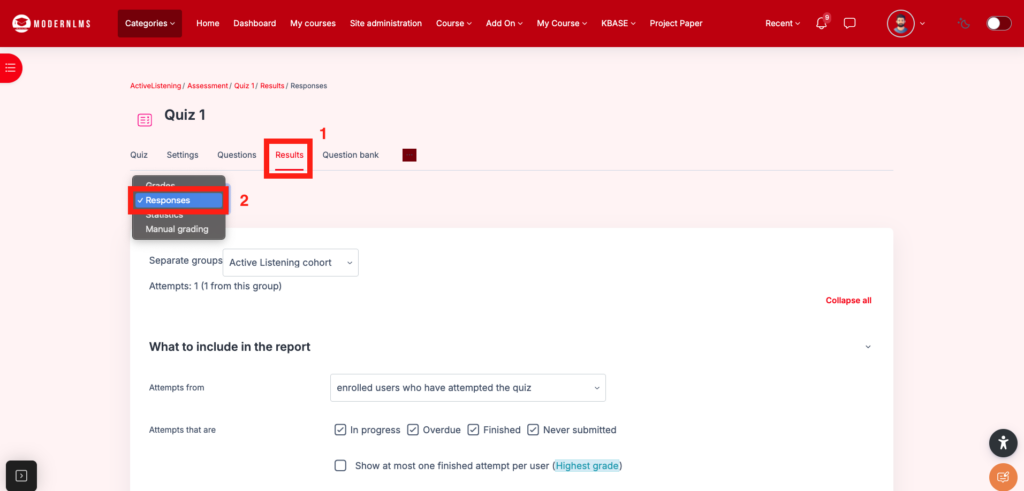
Step 3: Filter the student attempt
- Search or filter the student name.
- Locate the student’s quiz attempt.
- Click Review attempt.
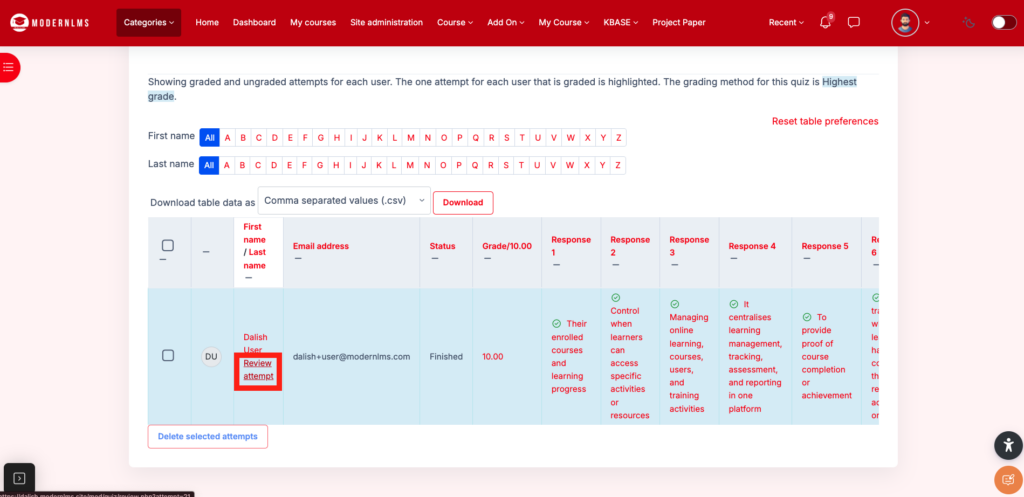
Step 4: View the answer script
The system will display the student’s quiz attempt, including:
- Quiz questions
- Student’s selected answers or written responses
- Marks awarded
- Correct/incorrect status, depending on quiz settings
- Feedback, if enabled
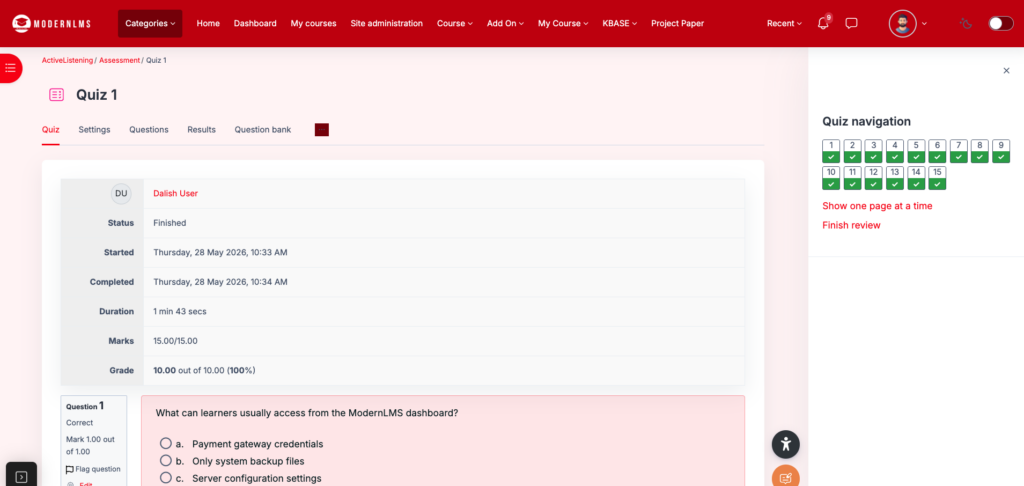
Step 5: Save or print the answer script
- On the review attempt page, right-click and select Print.
Or use keyboard shortcut:
- Windows: Ctrl + P
- Mac: Command + P
- Select Save as PDF.
- Save the file using the student’s name.
Example file name:
Answer Script - Student Name - Quiz Name.pdf
Alternative: Export quiz responses in Excel format
If the lecturer/admin wants to download the responses in table format:
- Go to the quiz activity.
- Click Results.
- Select Responses.
- Apply the required filters.
- Scroll to the bottom of the report.
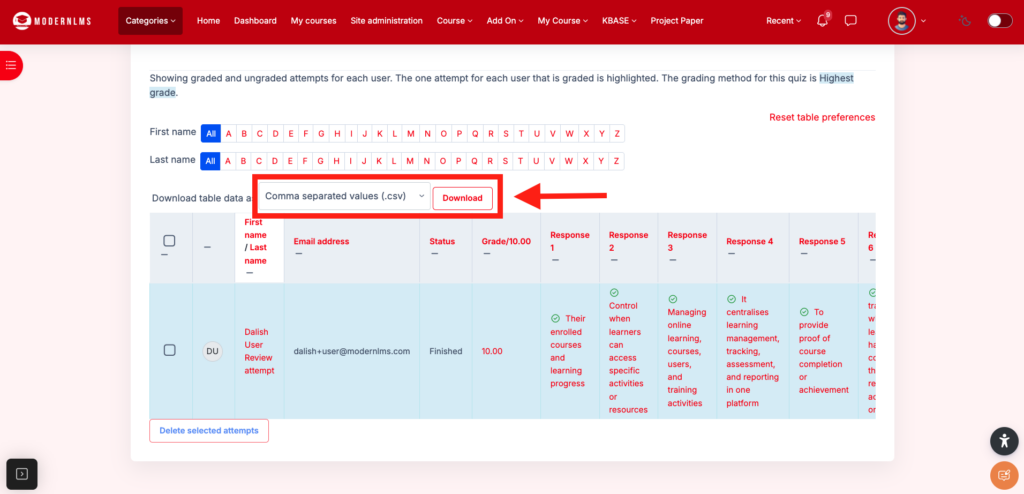
- Under Download table data as, select Microsoft Excel (.xlsx) or CSV.
- Click Download.
Important Note
By default, the LMS allows lecturers/admins to view each student’s answer script manually through Review attempt.
However, if the requirement is to automatically generate a separate formatted answer script PDF for every student in bulk, this is not part of the standard LMS function and may require a customization or CR.