Popular


Step-by-Step: Create and Configure Assingment Activity in ModernLMS
Step 1: Access the Course
-
Log in to ModernLMS with Teacher/Admin role.
-
Navigate to the required Course.
Click Turn editing on.
Step 2: Add Assignment Activity
-
In the desired course section, click Add an activity or resource.
-
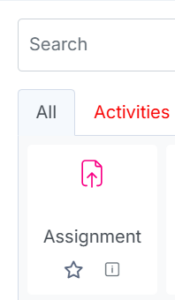
Select Assignment.
-
Step 3: Configure General Settings
-
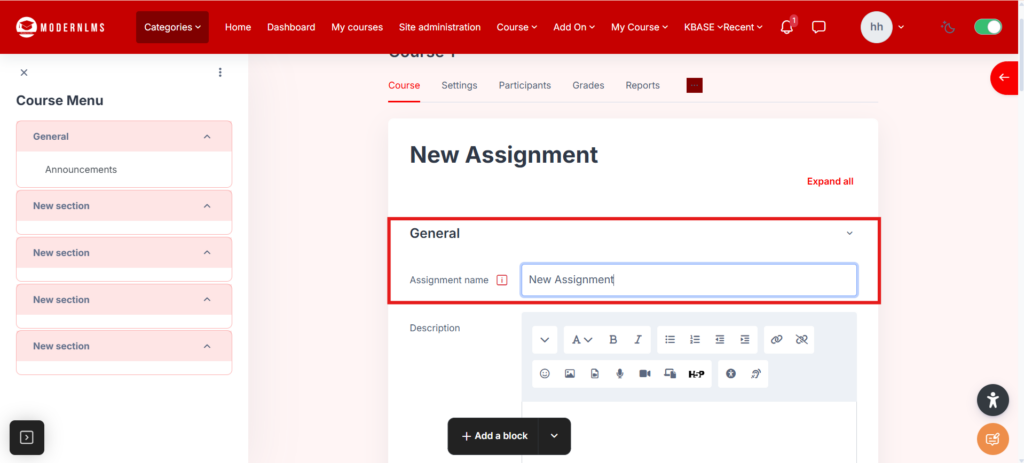
Enter Assignment name.
Step 4: Configure Timing
-
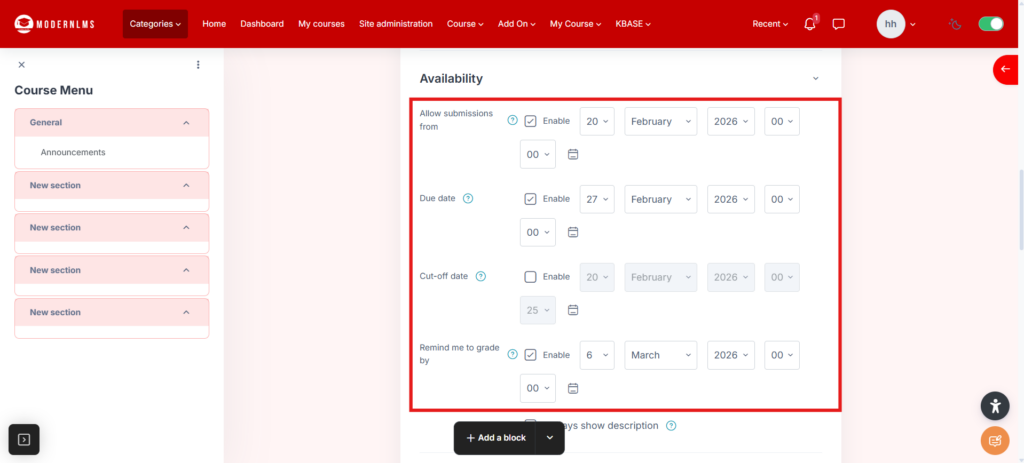
Set Open the allow assignment submission date and time.
-
Set Close the assignment due date and time.
- Set remind me to grade by date and time.
-
Step 5: Configure Grade Settings
-
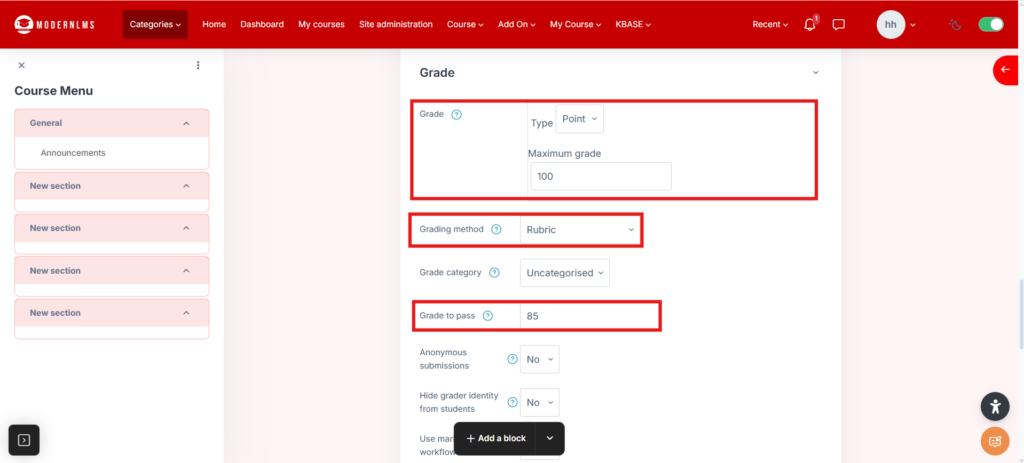
Choose Grading
-
- Fill in grade to pass – minimum bare example (80)
Step 6: Configure Completion Settings
-
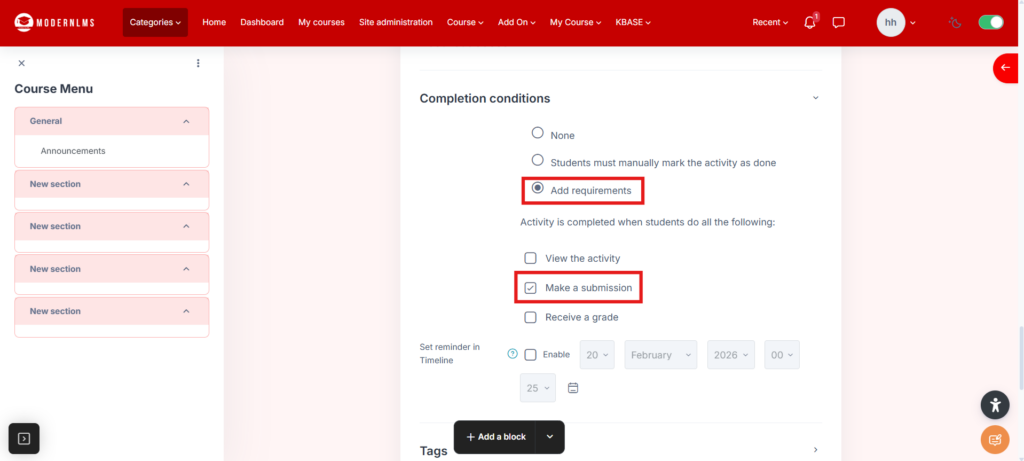
Enable Completion conditions.
-
Select completion condition:
-
Choose add requirement
-
Student must make a submission to complete
-
Step 7: Save Assignment Settings
-
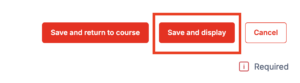
Click Save and display.
Step 8: Rubric setting (If you first time configure the rubric)
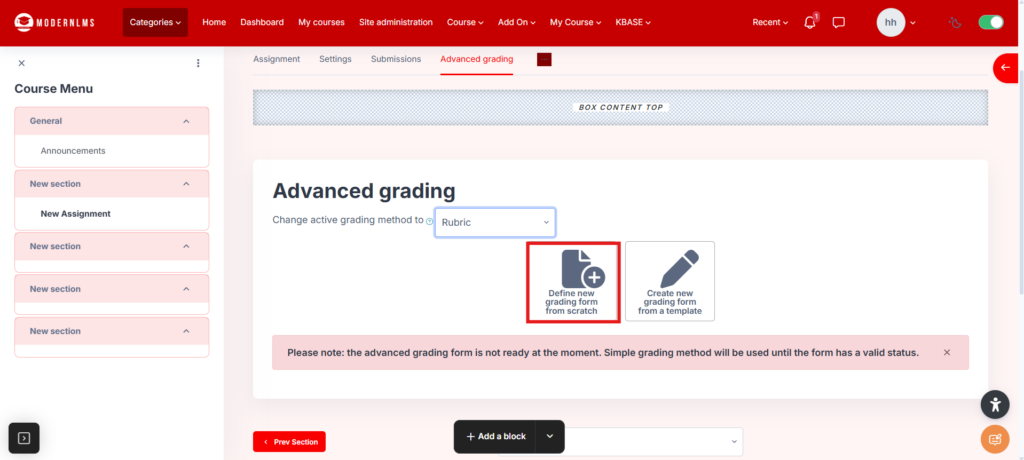
- Choose create new grading form from scratch
Step 9: Configure rubric marks and setting
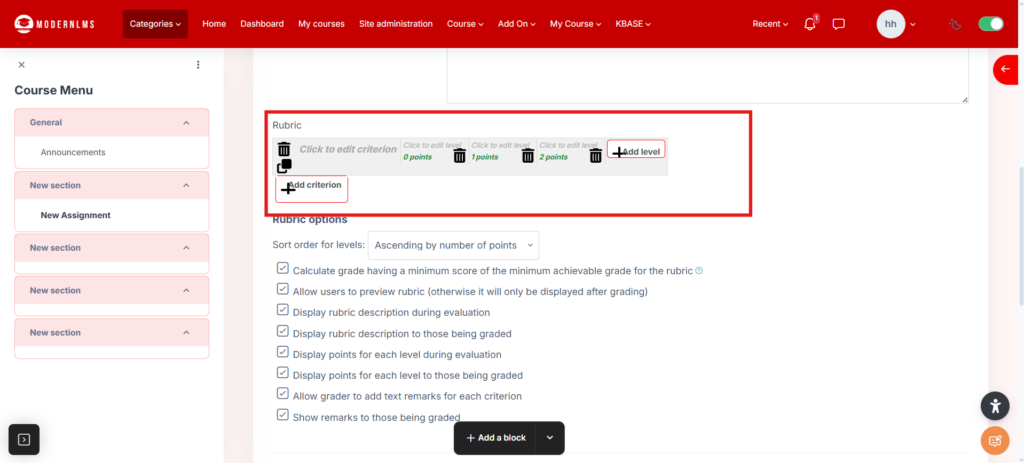
- Add rubric title in “Name”
- Click on the rubric box to add the criteria, level and point
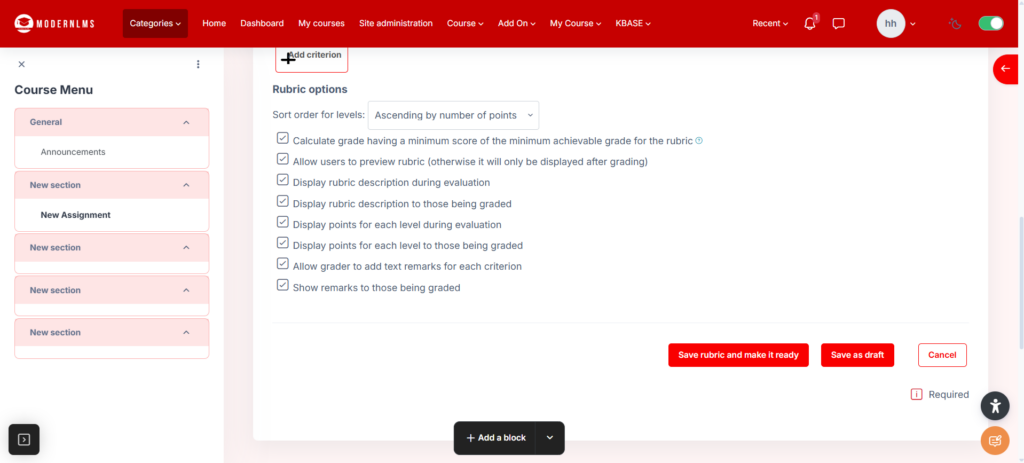
- Click add criteria to add another rubric row (you can do this repeatedly)
Step 10: Save the setting
- Click on save rubric and make it ready
Step 11: Grade student assignment
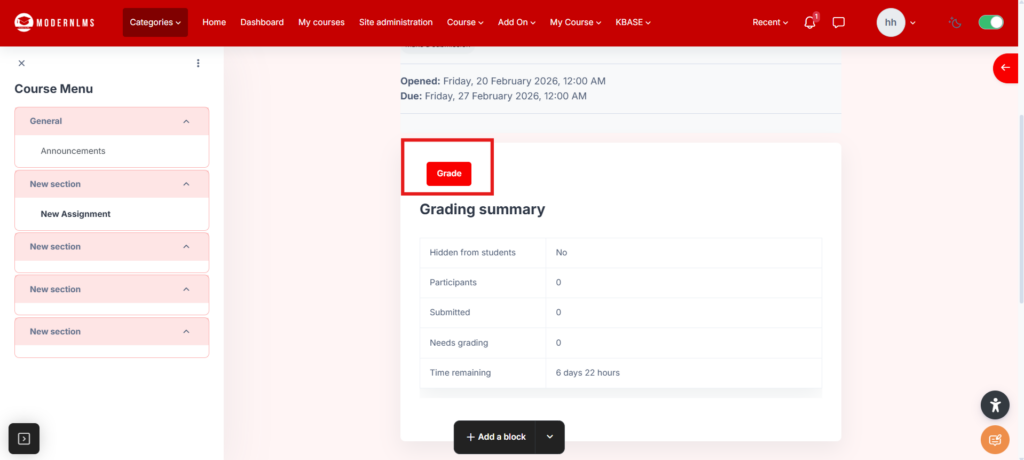
- When student has submitted the assignment, the assignment will be records in grading summary
- Click on grade button to grading the students