



What is a Dynamic Cohort
A Dynamic Cohort automatically adds or removes users based on rules (conditions).
Example: All users with Department = HR are always kept in the HR cohort.
Step-by-Step: Create a Dynamic Cohort
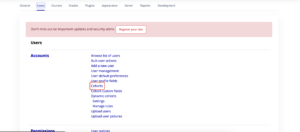
Step 1: Go to Cohorts
-
Log in as Site Administrator
-
Navigate to
Site administration → Users → Accounts → Cohorts
Step 2: Add a New Cohort
-
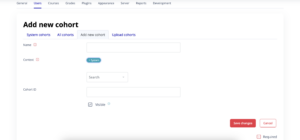
Click Add new cohort
-
Fill in:
-
Cohort name
(e.g. “HR Staff – Dynamic”) -
Context
-
System (recommended for global use)
Step 3: Enable Dynamic Membership
-
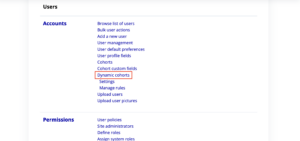
In the Cohort type or Membership type section:
-
Select Dynamic cohorts
-
⚠️ If this option is not visible, ensure:
Dynamic Cohorts is enabled
You have admin permission
Step 4: Add Dynamic Rules (Conditions)
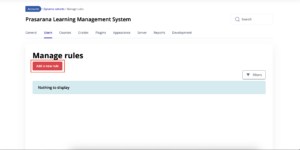
Click Manage rules
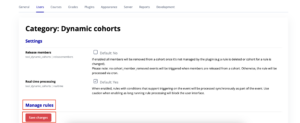
Click Add rule and define conditions such as:
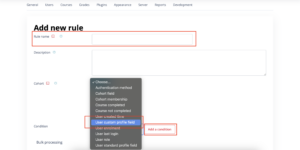
Fill in the Rule Name, Choose the Cohort which created and the User custom profile field then press Add condition
Common examples:
-
User profile field
-
Department = HR
-
Job Title contains “Manager”
-
Example rule:
User custom profile field → Department → equals → HR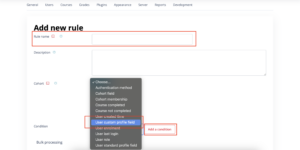
➡️ You can add multiple rules and set:
-
ALL conditions must be met (AND)
-
ANY condition can be met (OR)
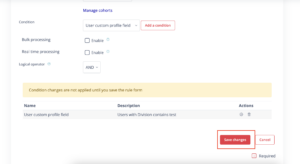
Step 5: Save the Cohort
-
Click Save changes
-
The system will automatically:
-
Add users who meet the rules
-
Remove users who no longer meet the rules
-
⏱️ Sync happens:
-
Immediately (on save), or
-
During scheduled cron runs
Step 6: Verify Members
-
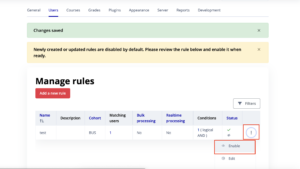
Click the cohort name
-
Select Enable
-
Confirm users are auto-added correctly
⚠️ Manual adding is usually disabled for dynamic cohorts
Step 7: Use the Dynamic Cohort
You can now use this cohort to:
-
Enrol users into courses
-
Assign programs (Moodle Workplace)
-
Control access to activities
-
Apply reports and automation rules
Good Practice Tips
✅ Use clear naming (include “Dynamic” in cohort name)
✅ Base rules on stable fields (Employee ID, Department)
✅ Avoid free-text fields where possible
✅ Test rules with 2–3 sample users first
Example Use Case
Requirement:
Automatically enrol all Finance staff into Compliance Training.
Solution:
-
Dynamic Cohort rule:
Department = Finance -
Link cohort to course enrolment
-
Result:
Any new Finance user is enrolled automatically, no manual work