Popular


Welcome to the ModernLMS Ticketing System User Guide! This comprehensive documentation will walk you through the process of submitting a support ticket to our portal. Whether you are reporting a system issue, requesting a configuration change, or seeking general technical assistance, this step-by-step guide is designed to ensure a smooth, efficient, and direct line of communication with our support team.
Inside, you will find clear instructions, technical tips, and best practices to help you create well-structured tickets that allow our engineers to triage and resolve your requests as quickly as possible.
Access the Support Portal
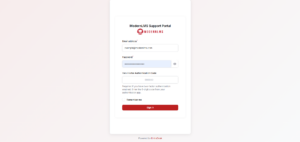
Visit https://support.modernlms.com/ and it will bring you to the official login page of the portal.
- Log In
Enter the login credentials provided to you.
Landing Page/Dashboard
-
Directed to Dashboard
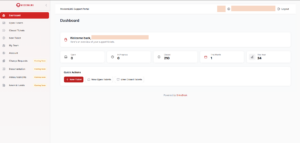
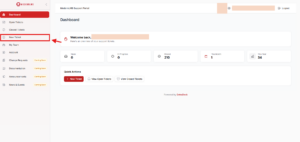
Once logged in, you’ll be directed to the dashboard, where all your submitted tickets are displayed.
New Ticket Creation
- Create a New Ticket
You can achieve this action by using either any of the options.
- Option 1
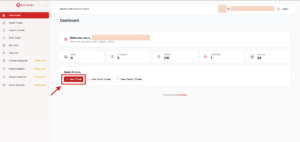
Click on “New Ticket” button on the Quick Actions section from the content box of the dashboard.
- Option 2
Click on “New Ticket” button on the left sidebar section from the dashboard.
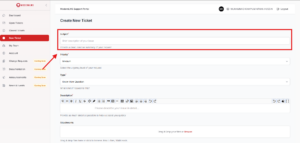
The Create New Ticket Page
Once clicked, the portal will re-direct you to the ticket creation page, where you can fill up the form regarding your inquiries towards ModernLMS.
- Subject
Fill up the “Subject” textbox about the topic that you wish to be inquiries to our team and respond.
- Priority
Choose the severity regarding the inquiry and how would you want us to priorities the topic of the ticket should be.
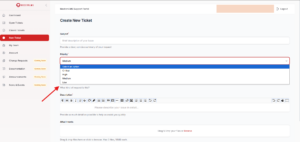
- Critical – (Resolved in 6 Business Hours or as agreed)
ModernLMS Software cannot be accessed at all due to system error. Some critical issues may include system downtime.
- High – (Resolved in 12 Business Hours or as agreed)
ModernLMS Software showing significant errors that are visible to end users.
- Medium – (Resolved in 2 Business Days or as agreed)
Issues that do not affect the usage of ModernLMS Software but are considered as a bug. Issues that are related to the administration site but not the end users.
- Low – (Resolved in 5 Business Days or as agreed)
Issues that do not affect the use of ModernLMS Software, enhancements, general questions
Note: The severity of the tickets can be changed by both parties regarding the subject and description of the tickets.
- Type
Choose the type of issues/inquiries that the subject of the ticket is related towards.
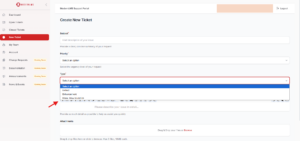
- Defect
Defects types of tickets commonly refers to an issue or an unexpected response from the system that may or may not be effecting the client’s business workflow towards using the system.
- Enhancement
Used when creating a ticket regarding to enhance the current state of the system. Enhancements can range from implementing features and custom workflows to integrations with external systems that the client’s organizations may or may not be currently using in their organization’s framework.
- Know-How Question
A Know-How-Question type of tickets are commonly created when the client’s wants to know how to use or operate an existing feature that may or may not be available in their current system.
Note: The type of the tickets can be changed by both parties. This is due to if the current type of ticket does not fit the chosen type and switched to a more suitable type option.
- Description
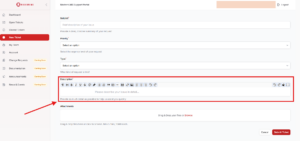
Type into the description textbox to further explain and define the reason for the creation of the ticket. Justify the ticket with as much description as possible, use simple and easy to understand wordings to define the subject of the ticket resulting in a quick and excellent understanding between the involved parties. Tools are also provided in the top of the description box to further help you enhance your justifications such as inserting URL links, Expressions, Highlights, and more.
- Attachments
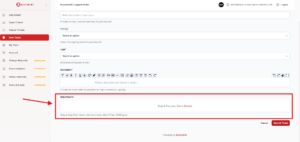
The attachments box is for the user to provide justification through other material and resources such as Videos (MP4), Picture (JPG & PNG), Data Tables (Excel and CSV), etc. Note that the user can only upload and attach up to only 5 files for each ticket created. The files also should only be 10MB size max each.
- Submit Ticket
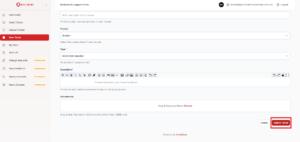
Once all of the required and optional fields are successfully filled with the correct requirements, justifications, and inquiries. Click on the button with the text “Submit Ticket” so that our team at ModernLMS can view and start working on the ticket and assisting you to resolve your reasons of the opening the ticket using the ModernLMS Support Portal.
View Created Ticket
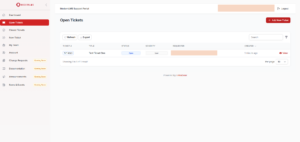
Once you have submitted the ticket, the system will then re-direct to the Open Tickets page where you can view the newly created ticket and alongside other open tickets.