

Popular


Steps to Perform Course Reminder Activity in ModernLMS
1. Access the Reminder Settings Page
- Log in to ModernLMS as an administrator or course creator.
- Go to the respective course.
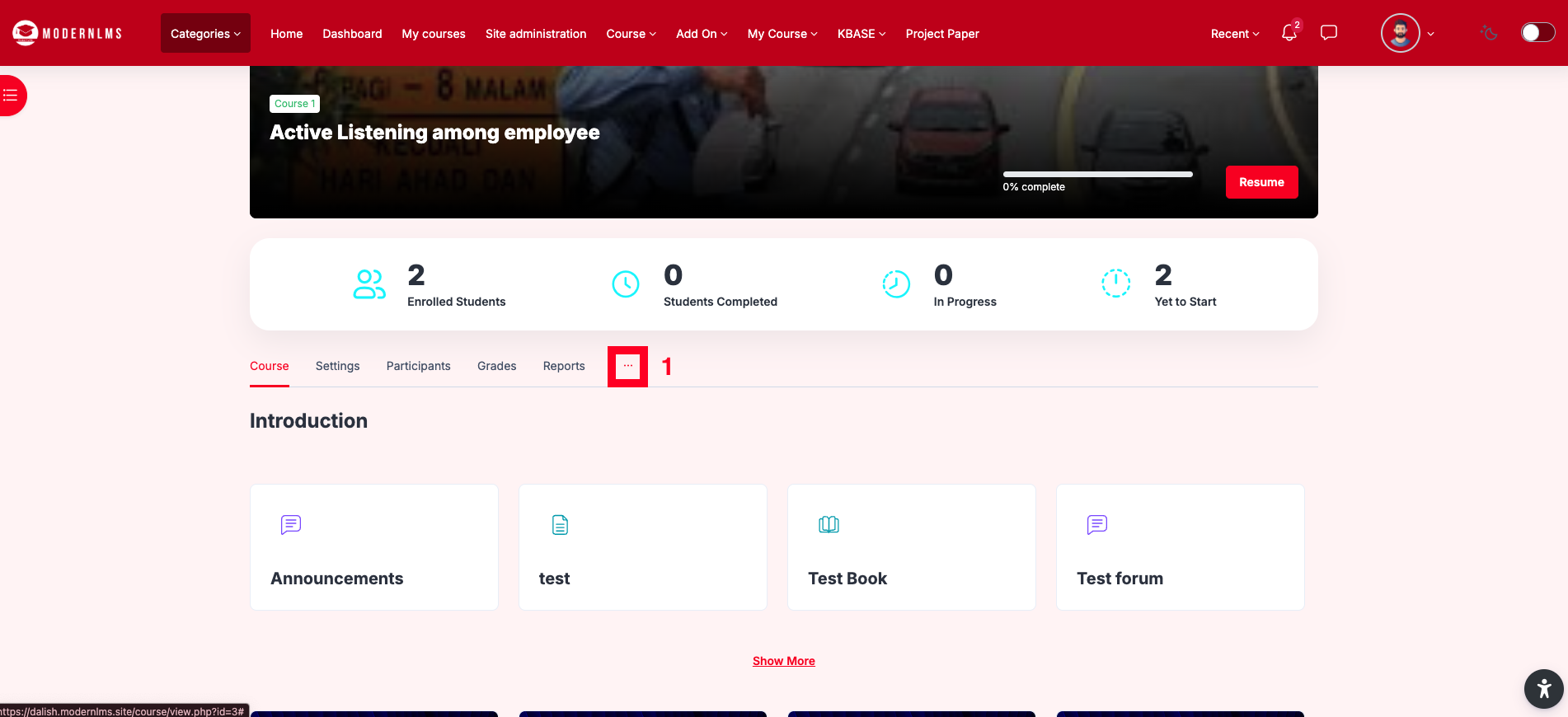
- Click (More or …).
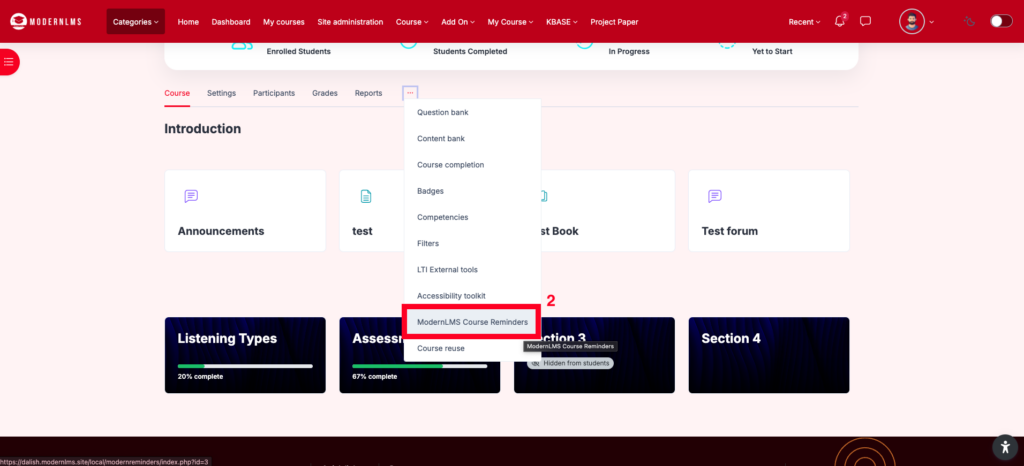
- Select ModernLMS Course Reminders.
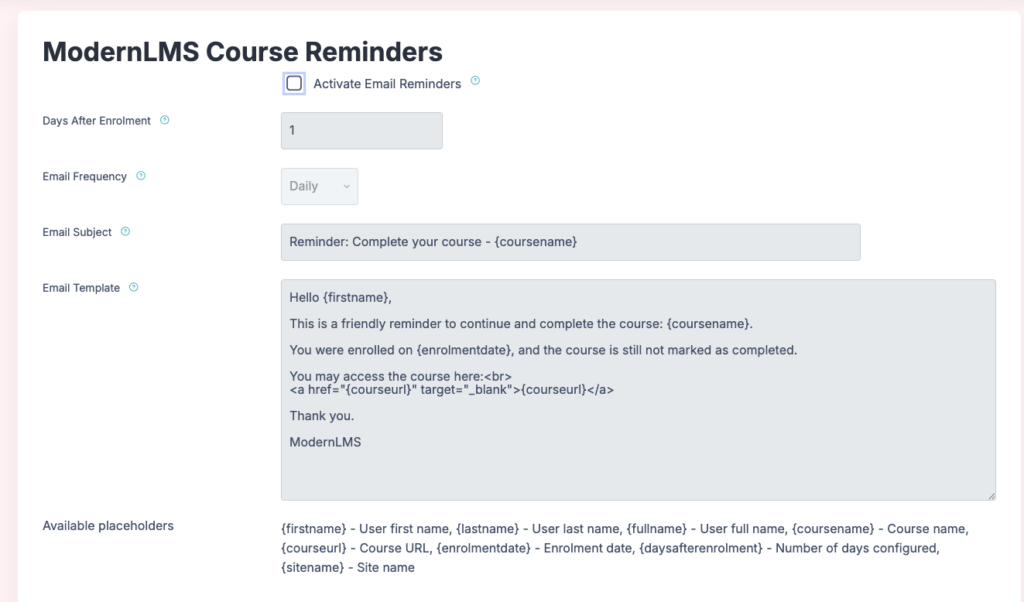
- The system will display the ModernLMS Course Reminders settings page.
2. Activate Email Reminder
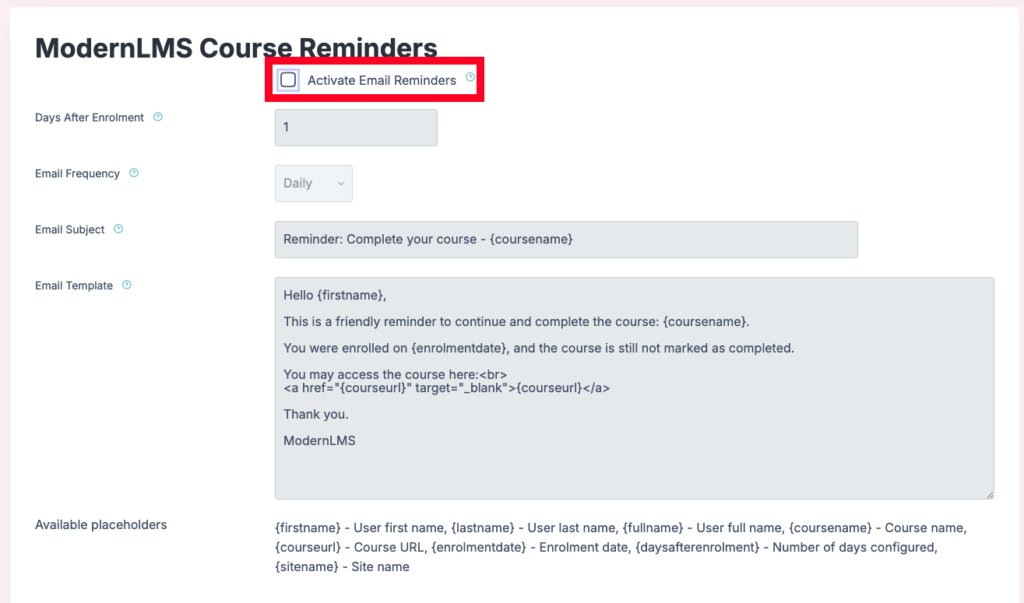
- Tick the checkbox for Activate Email Reminders.
- This will enable the system to send reminder emails automatically to users who have not completed their course.
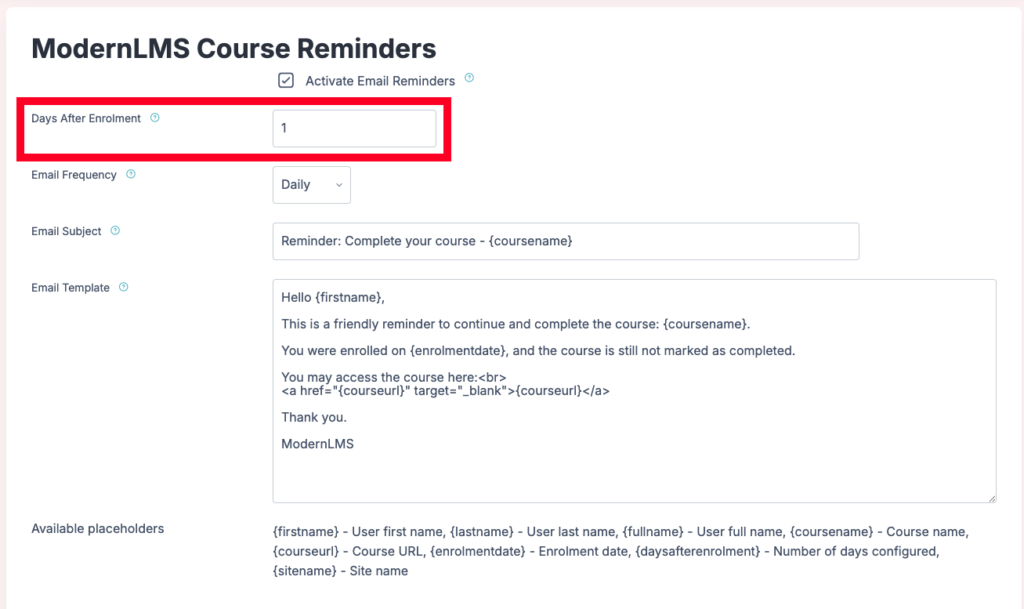
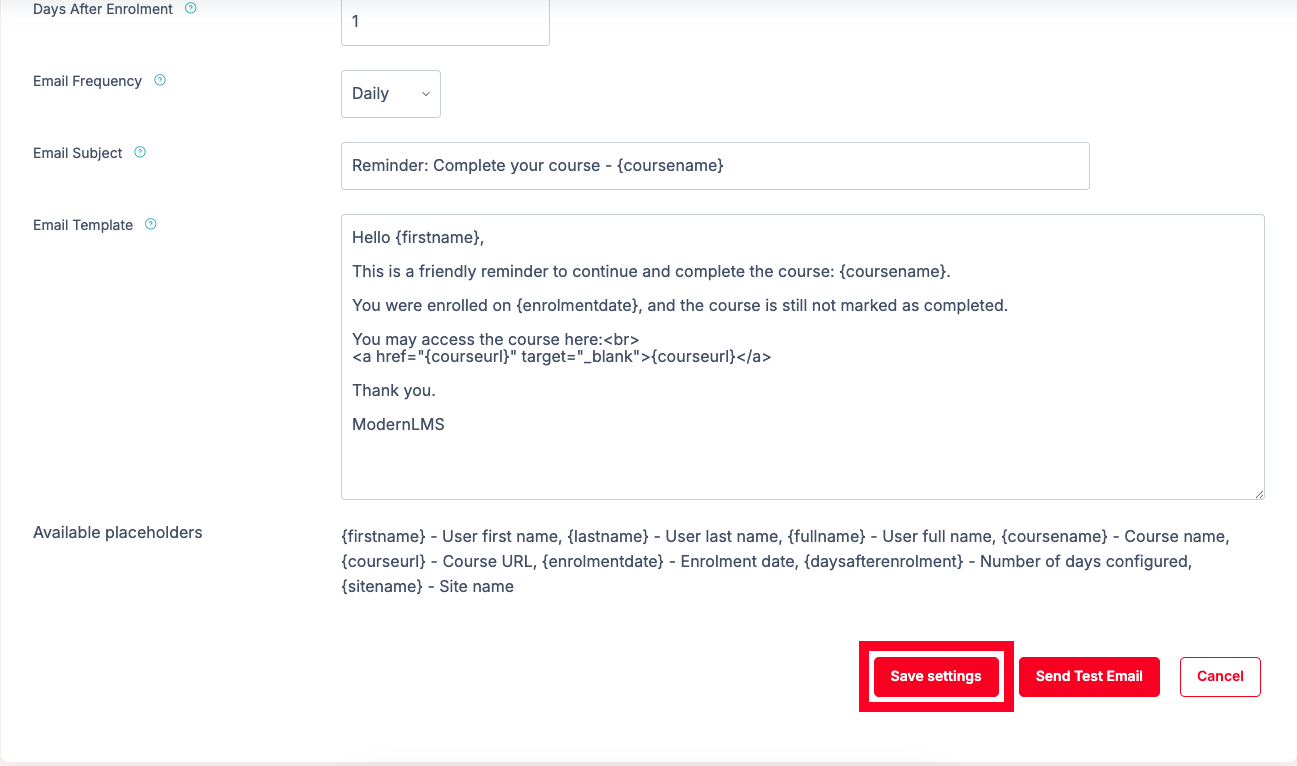
3. Set Days After Enrolment
- In the Days After Enrolment field, enter the number of days after enrolment before the reminder should be sent.
- Example: Enter 1 if the reminder should be sent 1 day after the user is enrolled in the course.
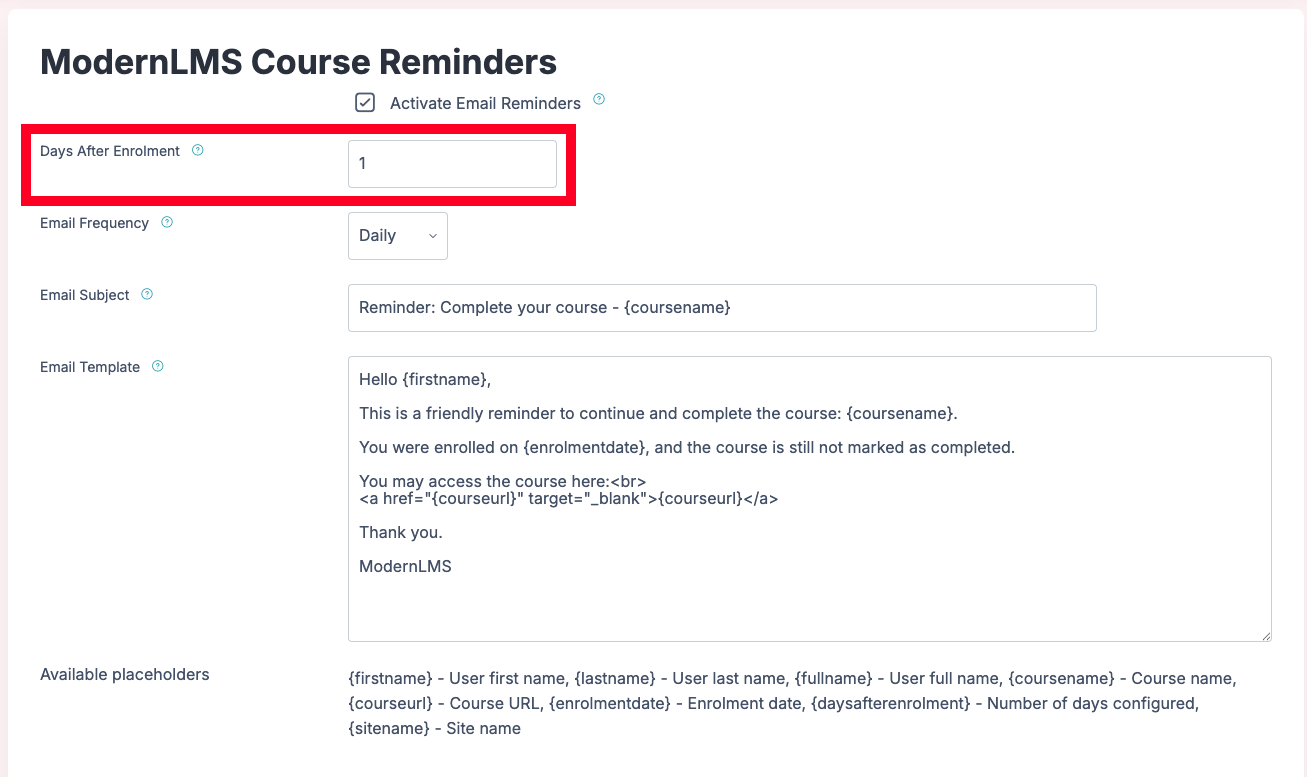
4. Set Email Frequency
- Go to Email Frequency.
- Select how often the reminder email should be sent.
- Example: Select Daily if the reminder should be sent every day until the course is completed.
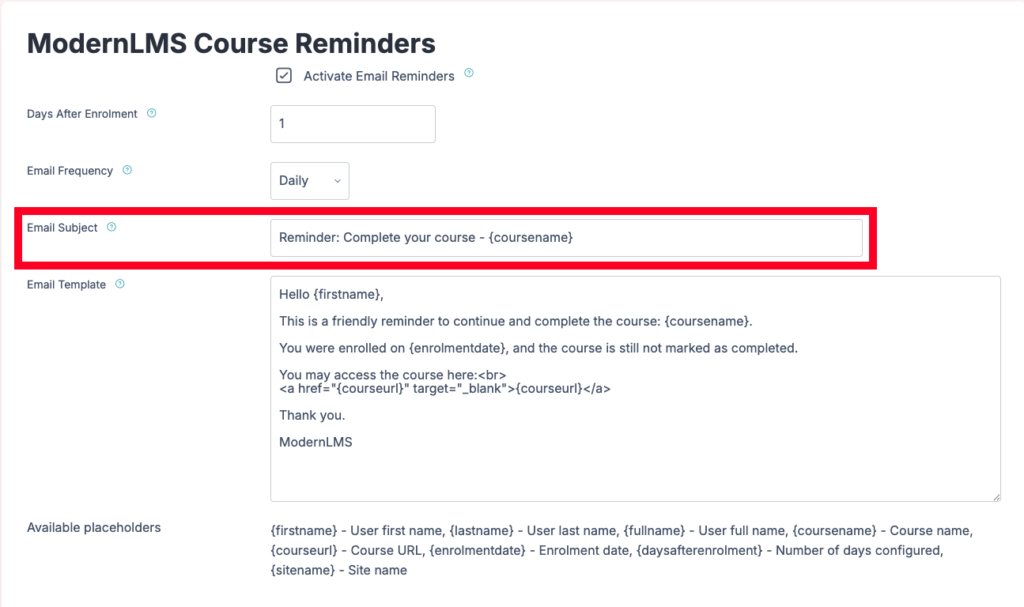
5. Configure Email Subject
- In the Email Subject field, enter the email subject.
- Example:
Reminder: Complete your course - {coursename}- The placeholder {coursename} will automatically display the course name in the email.
6. Configure Email Template
- In the Email Template field, insert the email content.
- Example:
Hello {firstname},

This is a friendly reminder to continue and complete the course: {coursename}.

You were enrolled on {enrolmentdate}, and the course is still not marked as completed.

You may access the course here:<br>
<a href="{courseurl}" target="_blank">{courseurl}</a>

Thank you.

ModernLMS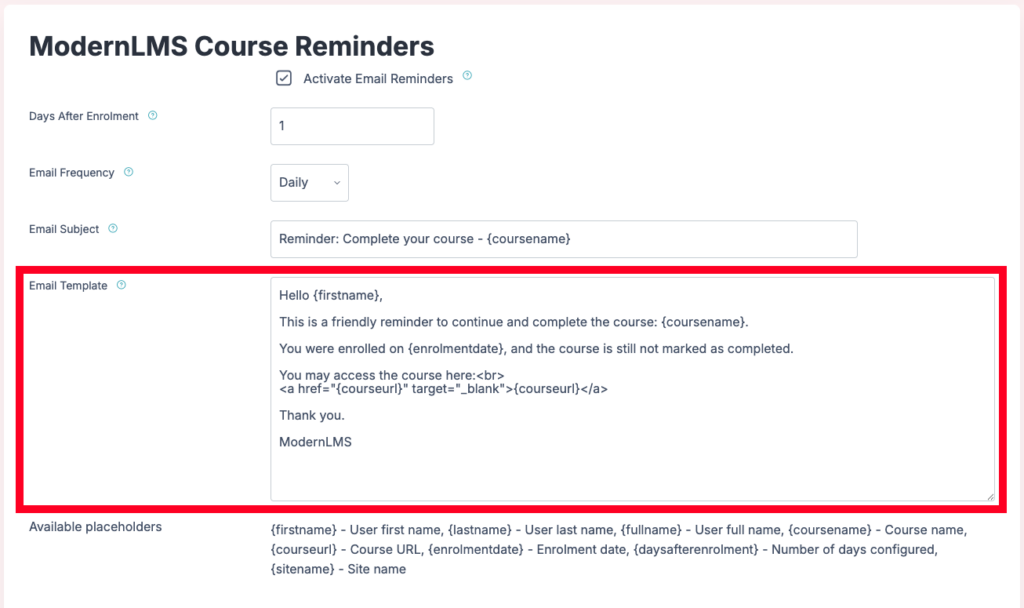
7. Use Available Placeholders
The following placeholders can be used in the email subject or email template:
| Placeholder | Description |
|---|---|
{firstname} |
User first name |
{lastname} |
User last name |
{fullname} |
User full name |
{coursename} |
Course name |
{courseurl} |
Course URL |
{enrolmentdate} |
User enrolment date |
{daysafterenrolment} |
Number of days configured |
{sitename} |
Site name |
8. Save the Reminder Settings
- After completing the configuration, click Save settings.
- The reminder configuration will be saved in the system.
- Once saved, the reminder will run based on the configured schedule and email frequency.
9. Send a Test Email
- Click Send Test Email to verify the email format and content.
- Check the recipient’s inbox to confirm that the email is received correctly.
- Review the email subject, placeholders, course link, and message formatting.
- If changes are required, update the template and click Save settings again.
10. Monitor Reminder Delivery
- Ensure users are enrolled in the relevant course.
- Ensure the course has completion tracking enabled.
- Users who have not completed the course after the configured number of days will receive the reminder email.
- Once the course is marked as completed, the reminder should no longer be sent to that user.
Important Notes
The reminder email will only work properly if email / SMTP sending is configured in LMS.
Course completion tracking should be enabled so the system can identify whether the user has completed the course or not.
The scheduled task or cron must be running for automatic reminders to be sent based on the configured frequency.