

Popular


Course completion is important because it acts as a rule that participants need to follow in order to complete the registered course that they were enrolled in.
1. Accessing the LMS
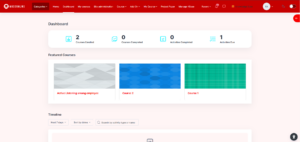
Log into the LMS
2. Go to the course
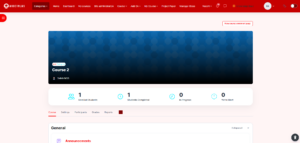
Navigate to the designated course that you would wish to configure the course completion conditions towards.
3. Go to Course Completion
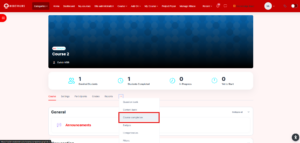
Click on the three dots to open more of the settings and options towards the specific course and choose Course Completion
4. Conditions of Completions
You can set the conditions that the users/learners have to complete and follow in order for the system to mark and record that the user has and indeed completed the course. From the screenshot attachment below, you can see that you can either set and want the users to complete all of the conditions or any of the conditions.
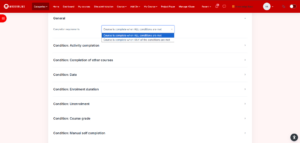
(We suggest to set to ALL since this will allow easier maintenance and management of the completion conditions)
5. Save Changes
Once all of the completion conditions have been successfully set and configurated, scroll down and click on “Save changes” to save and apply the changes
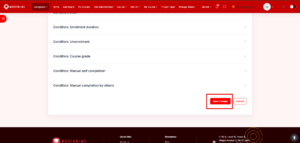
SUGGESTED SETUP FOR COMPLETION CONDITION
We suggest to only use the condition “Condition: Activity Completion” as this will allow easier tracking and auditing of user’s progress. Here is how to set it up:
Pre-requisitions:
- Make sure there are activities already in the course.
- Make sure the activities had already set completion conditions. You can refer to the document https://docs.modernlms.com/documentation/completion-tracking/ on how to achieve this action.
- Make sure to either set ALL conditions or ANY conditions are met in the completion requirements section . (As described, we suggest using ALL conditions are met.
Step 1:
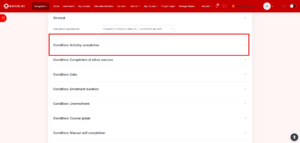
Click on the section Condition: Activity Completion to expand the section and make the configurations available if not already expanded.
Step 2:
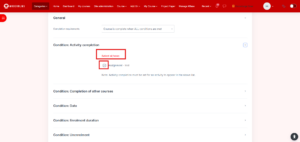
You can choose and tick in the tick-boxes towards which activity that are available in the course that the users will have to complete according to each of the activity’s completion conditions in order to successfully record the user to complete the course. You can also click on the “Select all/none” if you wish to set all of the activities in the course as a required condition to complete the course.
Step 3:
Click the button “Save Changes” to save the configurations