

Popular


Welcome to the ModernLMS Support Portal User Guide! In this guide we will guide towards managing and viewing your support team’s within the portal. Following these steps ensures you can easily check user profiles and manage account permissions.
DISCLAIMER: Any Names, Email Addresses, and Passwords displayed in the documentations are entirely fictional and are only use for educational & guidance purposes.
Access the Support Portal
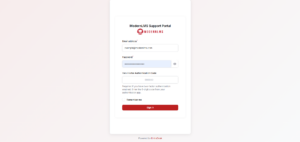
Visit https://support.modernlms.com/ and click “Sign in” at the top right corner.
- Log In
Enter the login credentials provided to you.
Landing Page/Dashboard
-
Directed to Dashboard
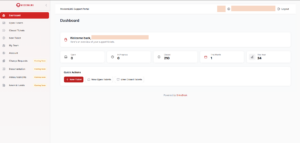
Once logged in, you’ll be directed to the dashboard.
Navigating to My Team Page
-
Navigation Menu
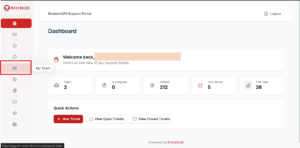
Click on the option labeled “My Team” to bring you to the My Team Page
My Team Page
-
Support Team
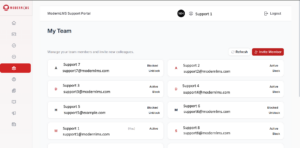
After clicking the “My Team” option from the navigation menu, you will be directed to the page where you can see all the other registered support team members from your organization.
- Support Member
Each support members will display their verified names and email addresses.

- Status
You can also see the current status of the support user. If the support user was displayed as “Active” meaning this user can log into the support portal to view and create tickets. - If the user’s status is “Blocked” means that this user can no longer log into the portal and can no longer view and create tickets for their organization.

- You can unblock a blocked support user if you wish to do so by clicking on the “Unblock” option that appeared on a blocked support user’s card.

Adding Support Users
If you or your organization needs to add new support users, do feel free to reach out to us on any communications medium that was agreed or by simply letting us know by opening a ticket.
If you wish to know how to open a ticket using the ModernLMS Support Portal, here is a documentation guide on how to do so: