Popular


Here are the steps to perform Bulk User Actions and download user information in LMS:
- Steps to Download User Information
- Login as Administrator
- Login to the LMS using an admin account.
-
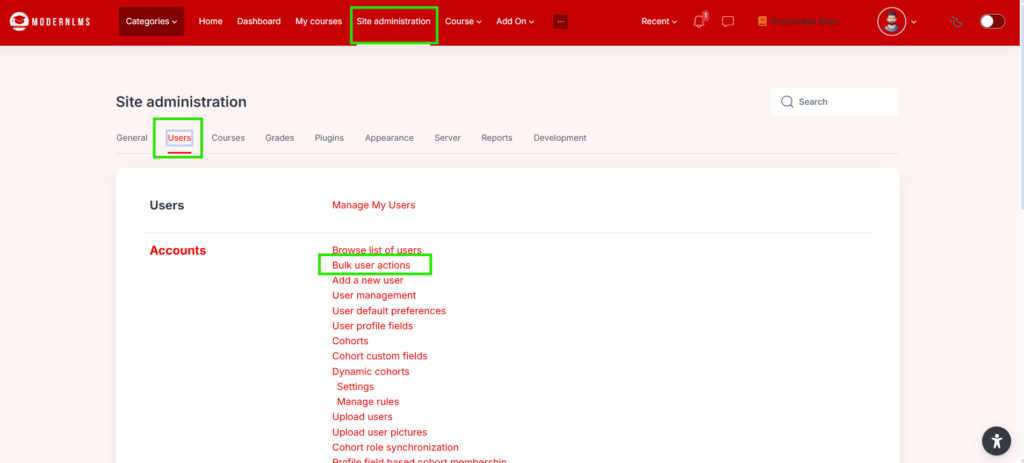
Go to Bulk User Actions
- Navigate to:
Site administration → Users → Accounts → Bulk user actions
_________________________________________Optional Steps ____________________________________________________
- Filter the Users
- Use the available filters to search for the users you want to download.
- Example filters:
- Username
- Email address
- First name / Last name
- Authentication method
- Course enrolment status
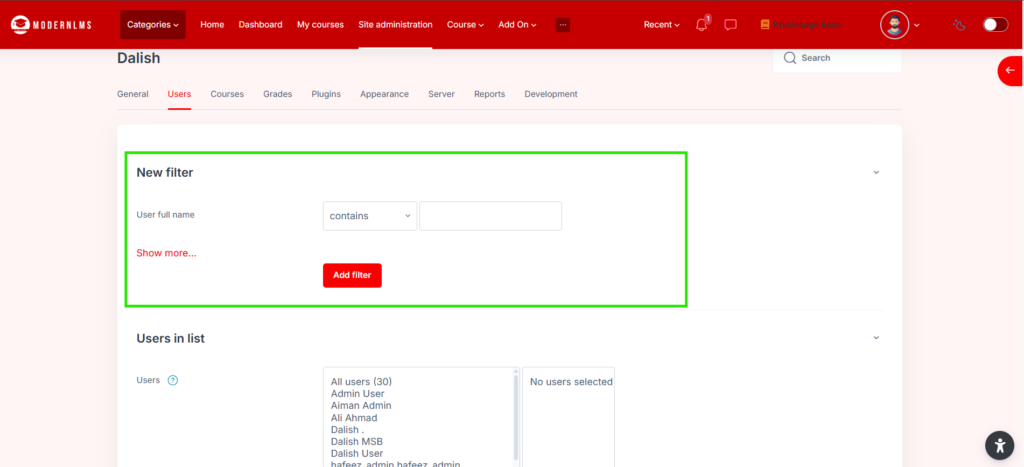
- Apply the Filter
- After setting the filter, click Add filter.
- The matching users will appear in the available user list.
________________________________________________________________________________________________________________
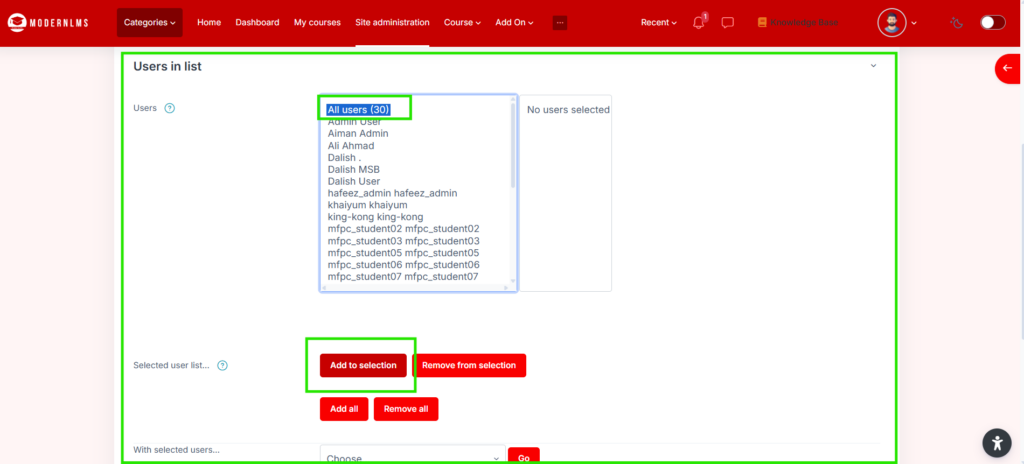
- Select the Users
- Select the users from the list.
- Click Add to selection.
- The selected users will move to the selected users section.
-
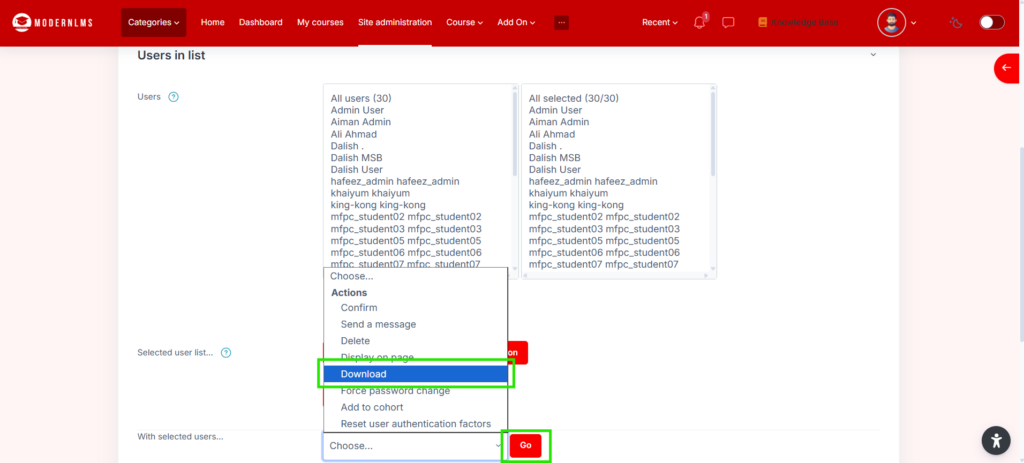
Choose Download Action
- Under With selected users, choose:
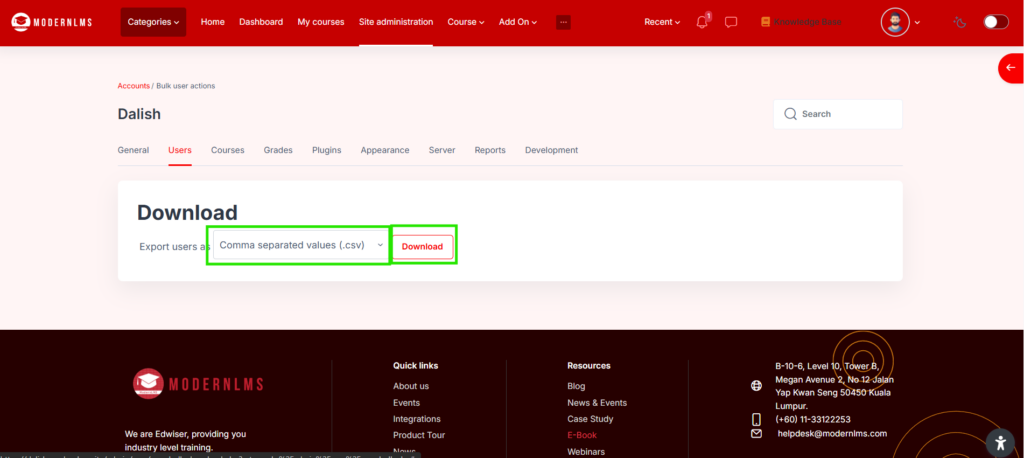
Download from the dropdown and Press Go
- Select Download Format
- Choose the file format, usually:
- CSV
- Excel
- ODS
- Choose the file format, usually:
- Download the File
- Click Go or Download.
- The LMS will generate a file containing the selected users’ information.