Popular


Set Up Profile-Based Enrolment Using “Department”
This guide assumes Department is a custom user profile field with the short name department, and ModernLMS has the Enrol by user profile fields enrolment plugin installed.

1. Confirm the Department profile field
Navigate to:
Site administration → Users → User profile fields
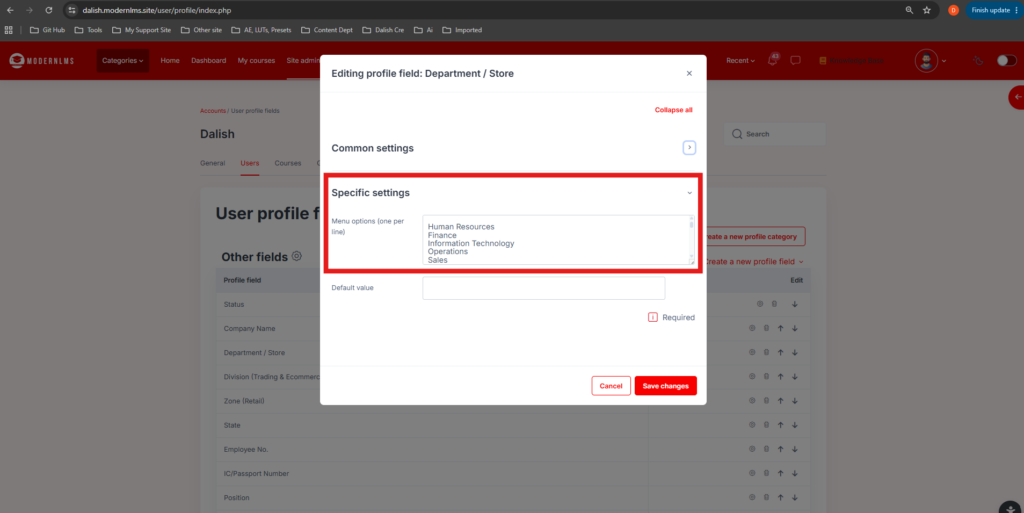
Confirm that the field has been created with settings similar to:
| Setting | Recommended value |
|---|---|
| Name | Department |
| Short name | department |
| Field type | Dropdown menu or text input |
| Required | Based on your requirement |
| Visible to user | Yes, or hidden if managed by administrators |
A dropdown menu is recommended because it prevents spelling differences such as:
- Human Resource
- Human Resources
- HR
- Hr
Example dropdown values:
Human Resources
Finance
Information Technology
Operations
Sales
2. Assign a department to the user
Navigate to:
Site administration → Users → Accounts → Browse list of users
- Find the required user.
- Click Edit.
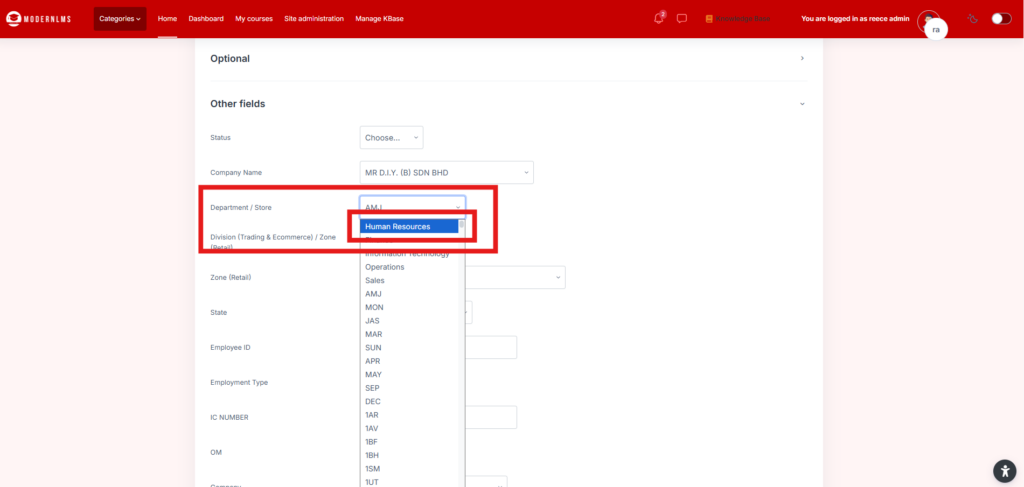
- Find the Department profile field.
- Select or enter the department.
Example:
Department: Human Resources
- Click Update profile.
The department value must exactly match the value that will be configured in the course.
3. Enable Profile-Based Enrolment
Navigate to:
Site administration → Plugins → Enrolments → Manage enrol plugins
Find:
Enrol by user profile fields
Click the eye icon to enable it.
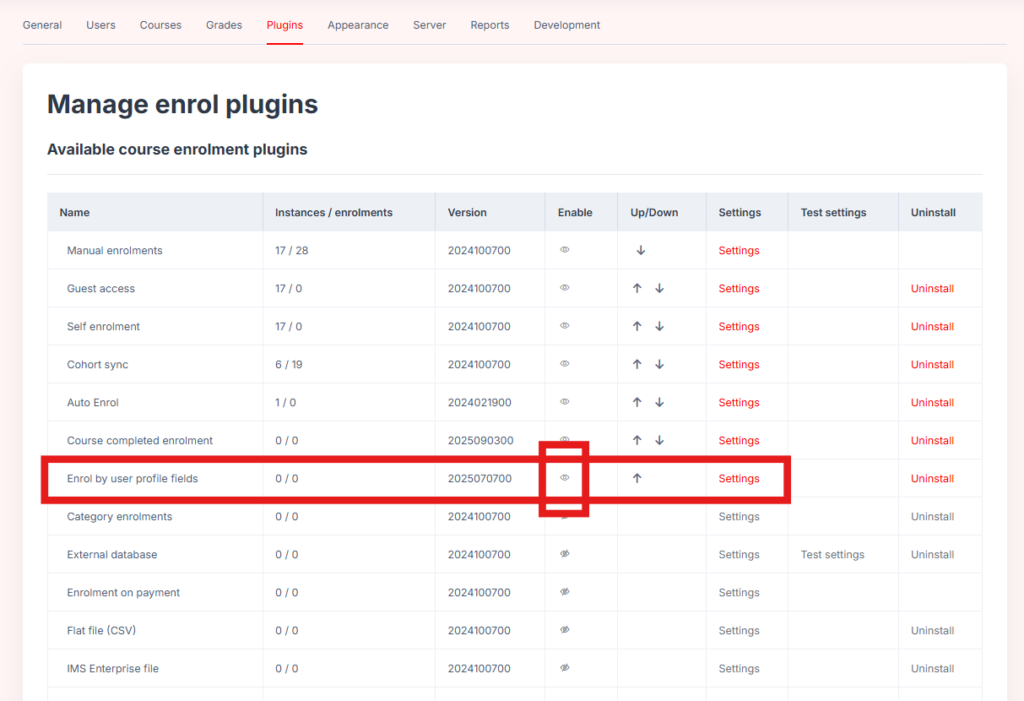
Course enrolment methods are only available when the corresponding enrolment plugin has been enabled at site level.
4. Configure the plugin settings (Setup by ModernLMS Team)
Navigate to:
Site administration → Plugins → Enrolments → Enrol by user profile fields
Configure the following:
| Setting | Recommended value |
|---|---|
| Profile fields to be used | Department |
| Default role | Student/Learner |
| Enrol users immediately at login | Yes |
| Behaviour when attributes no longer match | Suspend user |
→ Profile fields to be used in the selector
Selecting the Department field here is important. If no custom profile field is selected, the plugin cannot be used properly within courses.
5. Add Profile-Based Enrolment to the Course
Enter the required course.
Navigate to:
Course → Participants
From the Participants dropdown menu, select:
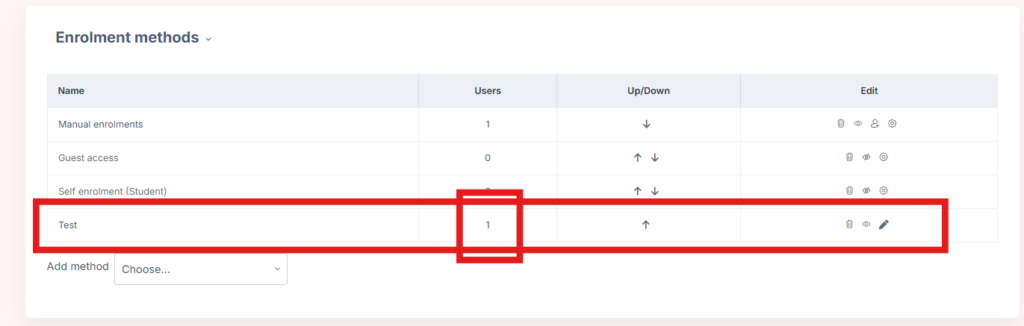
Enrolment methods
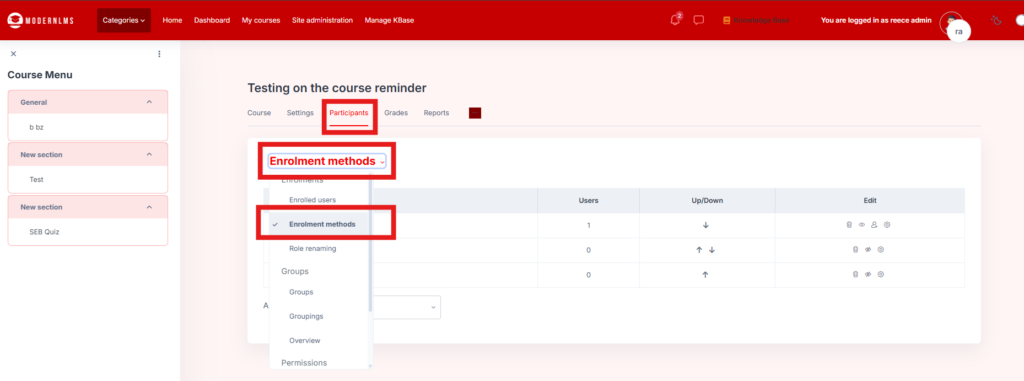
Then:
- Click Add method.
- Select Enrol by user profile fields.
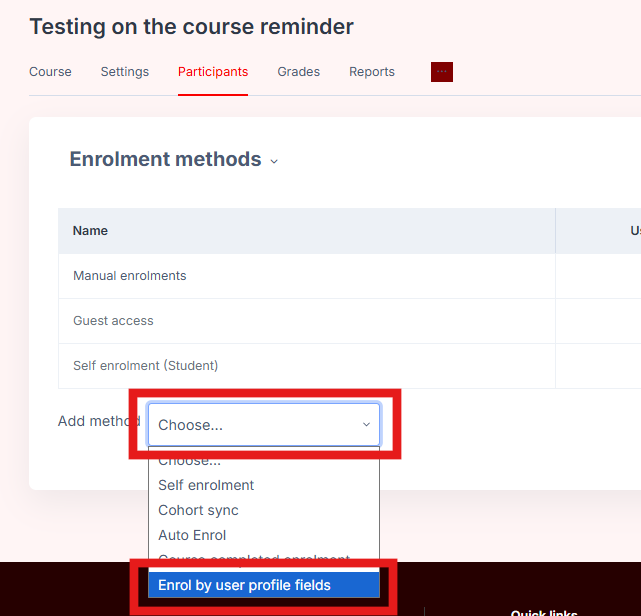
Configure the enrolment method.
Example configuration
| Setting | Value |
|---|---|
| Custom instance name | Test |
| Assign role | Student/Learner |
| Profile field | Department |
| Operator | Equals |
| Value | Human Resources |
| Group assignment | None, or select a course group |
| Behaviour when no longer matching | Suspend user |
| Enable enrolment method | Yes |
The rule should look similar to:
Department equals Human ResourcesClick Add method.
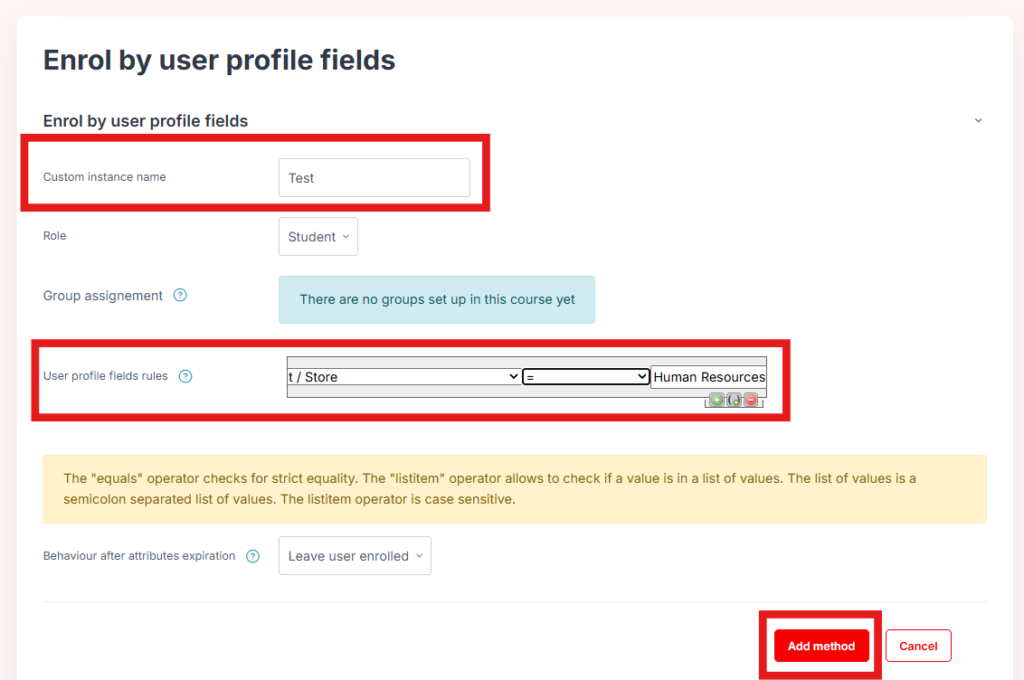
ModernLMS will enrol users whose Department profile value exactly matches the configured rule.
6. Enrol Existing Matching Users
After creating the enrolment method, return to:
Course → Participants → Enrolment methods
Find the newly created profile-based enrolment method.
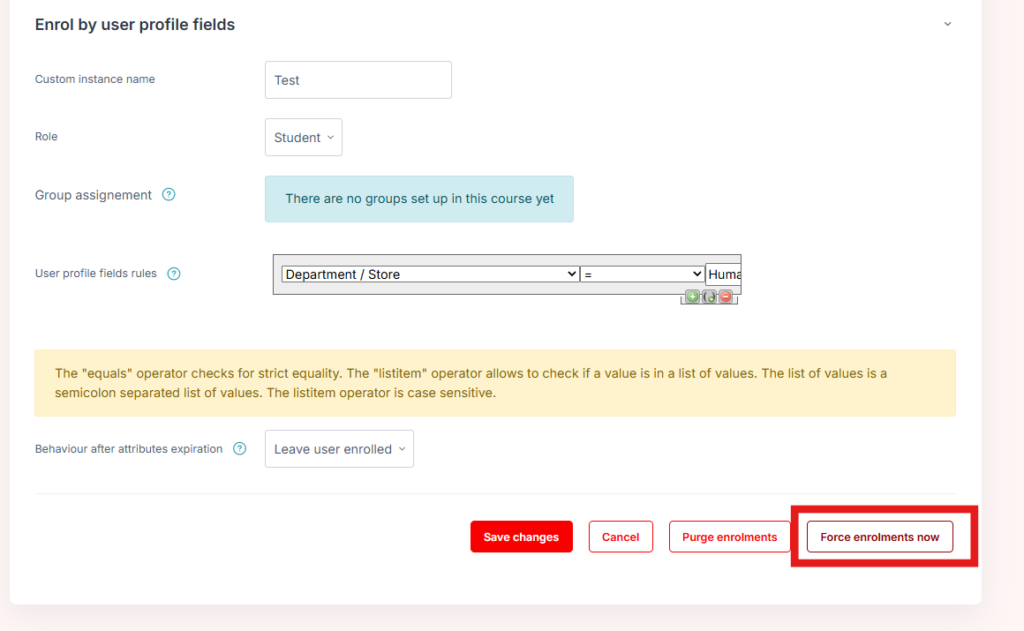
Click:
Force enrolments now
This immediately checks existing users and enrolls everyone whose profile matches the rule. The plugin provides this function specifically to enrol or re-enrol all users who currently match the configured conditions.
For example:
Course rule:
Department equals Human Resources

User profile:
Department = Human Resources

Result:
User is enrolled as a learner.
7. Test the Configuration
Create or use two test users.
Test User A
Department: Human ResourcesExpected result:
Automatically enrolled in the course.Test User B
Department: FinanceExpected result:
Not enrolled in the course.After updating the profiles:
- Click Force enrolments now.
- Check Course → Participants.
- Confirm that only Test User A appears.
- Log in as Test User A.
- Confirm that the course appears on the user’s dashboard.
Enrolling Multiple Departments
To enrol multiple departments into the same course, add additional conditions or condition groups.
Example:
Department equals Human Resources
OR
Department equals Finance
Alternatively, add separate enrolment method instances:
IT Department Enrolment
Finance Department Enrolment
Separate enrolment methods are usually easier to manage and troubleshoot.
When a User Changes Department
Example:
Previous department: Information Technology
New department: Finance
The result depends on the configured Behaviour when attributes no longer match:
- Suspend user: Keeps course records but prevents access.
- Unenrol user: Removes the course enrolment and may affect associated course data.
- Leave user enrolled: The user continues to access the course.
For most production environments, Suspend user is safer because it preserves the learner’s grades, completion records and activity history.
Important Note
The current Enrol by user profile fields plugin is designed around custom profile fields. If you are referring to Moodle’s built-in standard Department field rather than a custom field named Department, it may not appear in the rule selector. In that situation, create a custom dropdown field with:
Name: Department
Short name: department