

Popular


The feature they are referring to is Self enrolment with an Enrolment Key. It allows the School Admin/Teacher to set a different key for each course, and students can enrol themselves only if they know the correct key. LMS officially supports this through the Self enrolment enrolment method.
School Admin / Course Admin Setup
- Login to the LMS as Admin / School Admin / Teacher.
- Open the required Course.
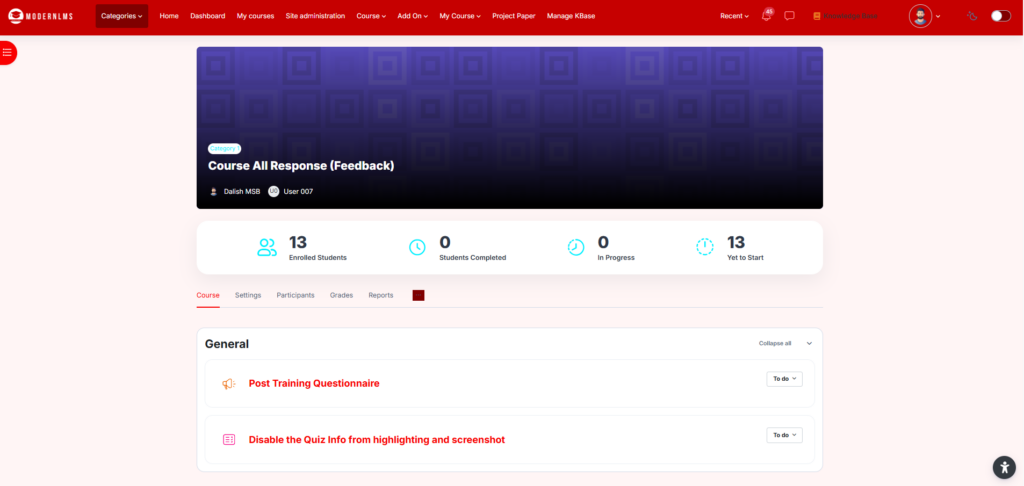
- Go to Participants.
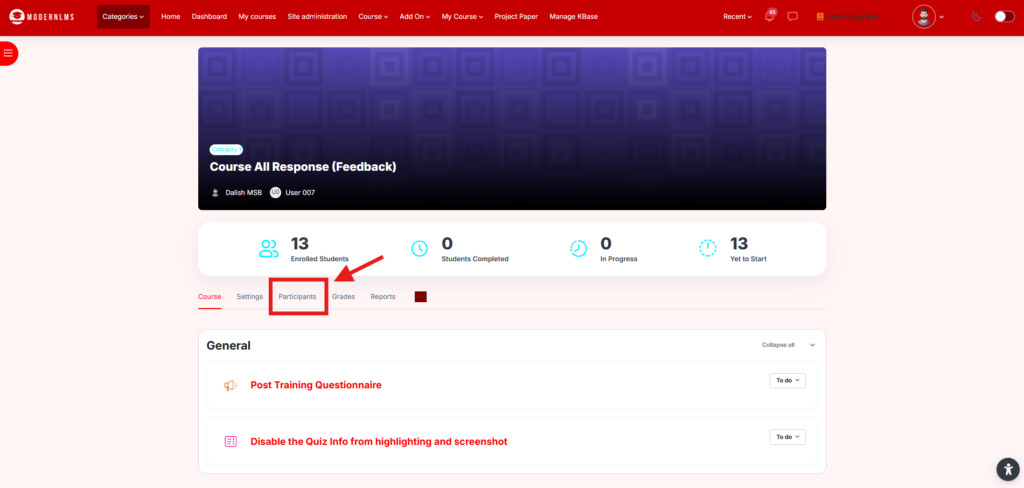
- From the Participants page, select Enrolment methods.
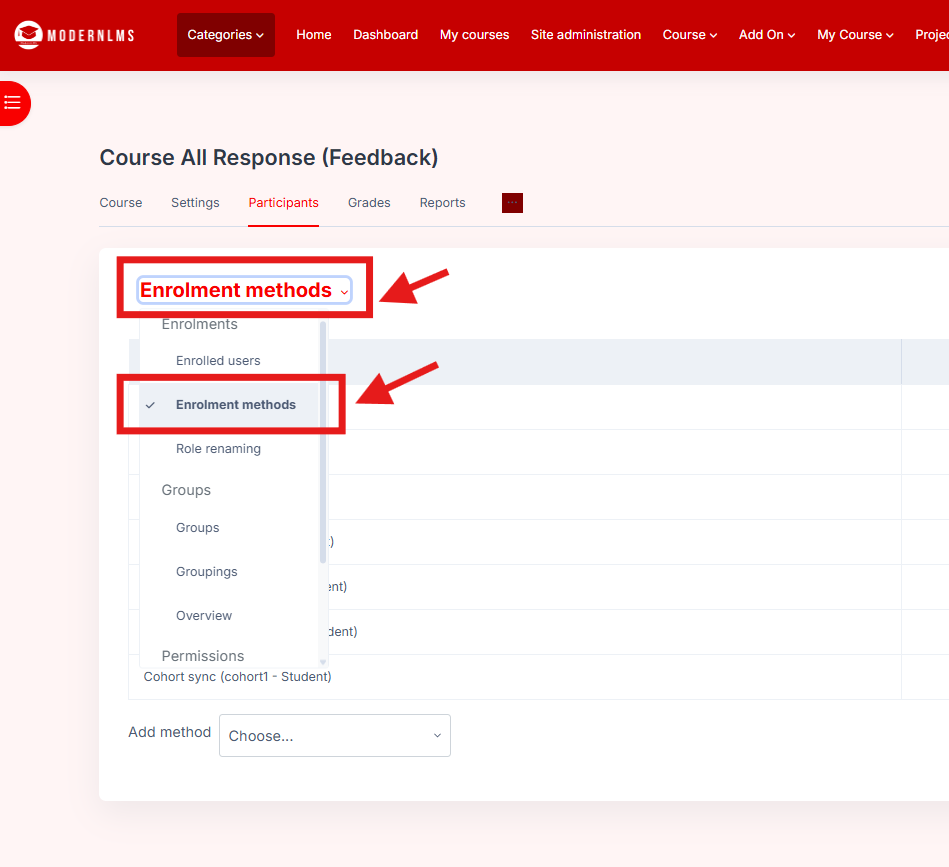
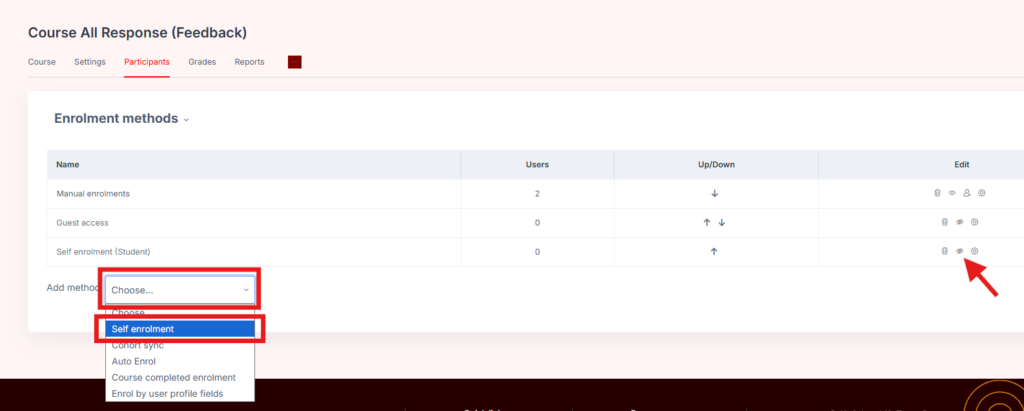
- Check whether Self enrolment (Student) is available.
- If it exists but is disabled, enable it using the eye icon.
- If it does not exist, select Add method → Self enrolment.
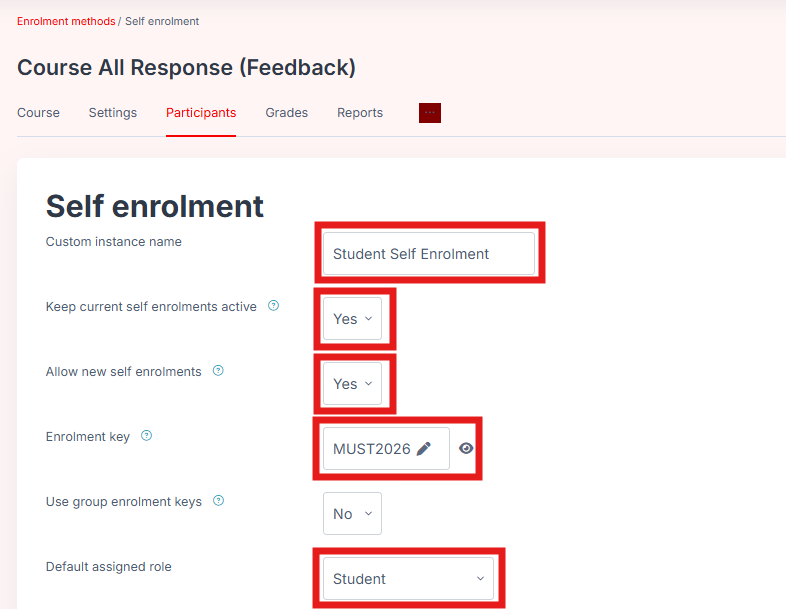
- Configure the Self enrolment settings:
- Custom instance name: Optional, e.g.
Student Self Enrolment - Keep current self enrolments active: Yes
- Allow new self enrolments: Yes
- Enrolment key: Enter the required key, e.g.
MUST2026 - Default assigned role: Student
- Custom instance name: Optional, e.g.
- If required, configure:
- Enrolment start date
- Enrolment end date
- Enrolment duration
- Maximum enrolled users
- Welcome message
- Click Add method / Save changes.
The Enrolment Key is configured per course, so the School Admin can use different keys for different courses.
Student Enrolment Flow
- Student logs in to the LMS.
- Student searches for or opens the required course.
- The LMS displays the Self enrolment option.
- Student enters the Enrolment Key provided by the School Admin, for example
MUST2026. - Click Enrol me.
- If the key is correct, the student is enrolled into the course and can access the course content. Moodle’s self-enrolment process supports passing an enrolment key as the password for joining a course.
Example:
Course: Course All Response (Feedback)
Enrolment Method: Self enrolment
Enrolment Key:MUST2026
Student → Login → Open Introduction to Business → EnterMUST2026→ Enrol me