

Popular


A. Create or Open the Assignment
- Log in to LMS as a Teacher / Lecturer.
- Open the relevant Course.
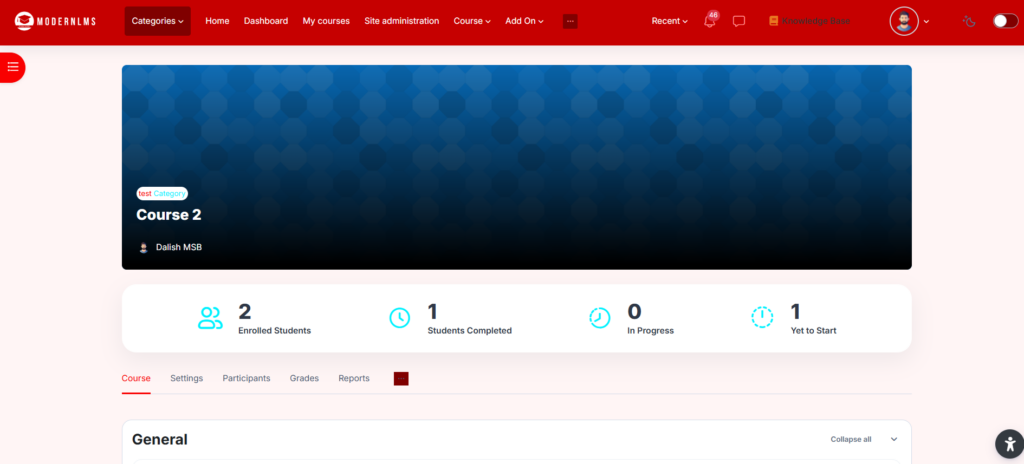
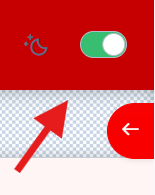
- Turn Edit mode ON.
- Either:
- Open an existing Assignment, or
- Click Add an activity or resource → Assignment.
- Configure the assignment name, submission settings, due date, and other required settings.
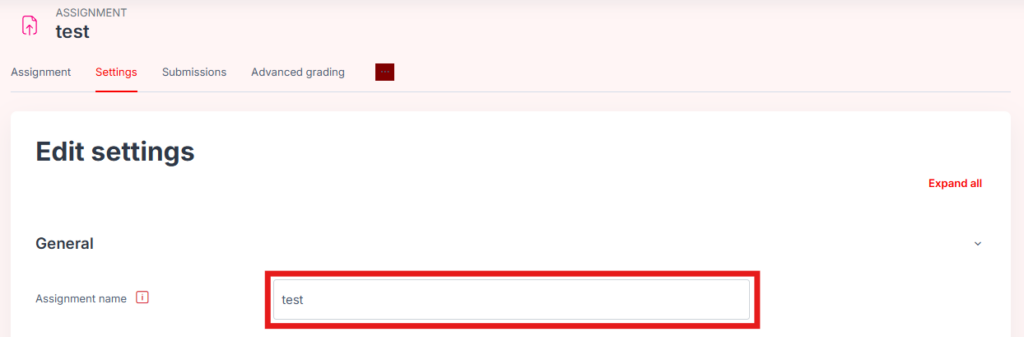
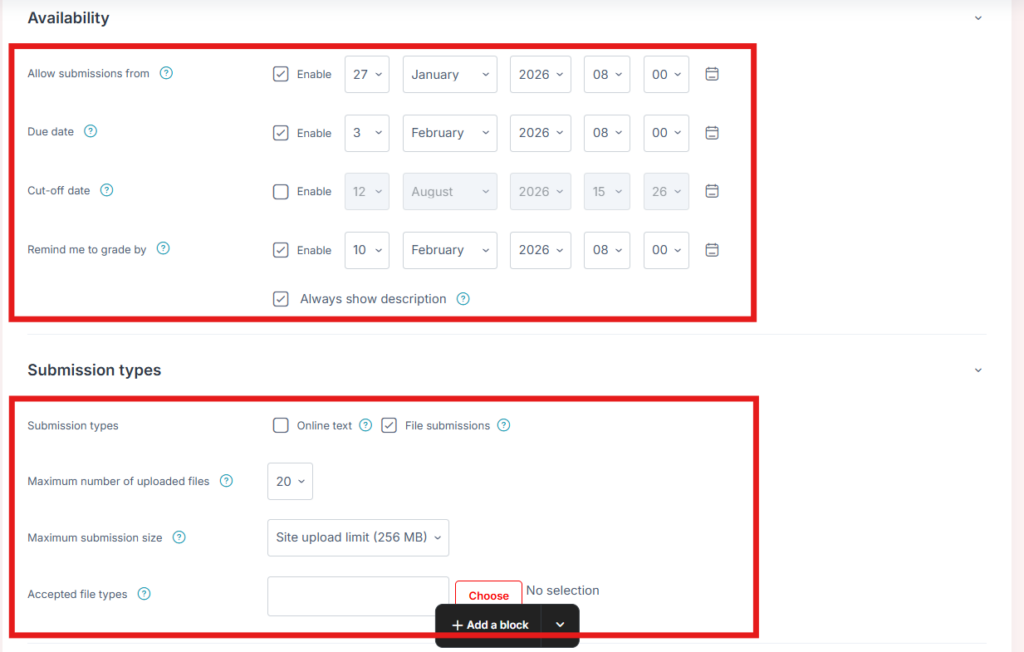
LMS Assignment supports advanced grading methods such as rubrics.
B. Enable Rubric Grading
- Open the Assignment.
- Select Settings.
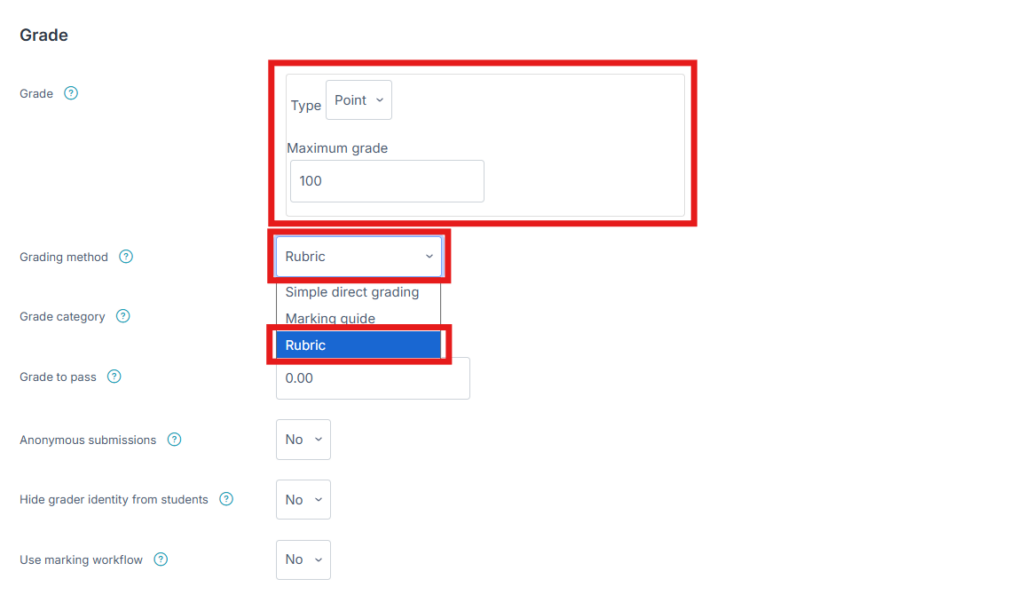
- Scroll down to the Grade section.
- Configure the required grade, for example:
- Type: Point
- Maximum grade: 100
- Find Grading method.
- Change:
Simple direct grading
to:
Rubric
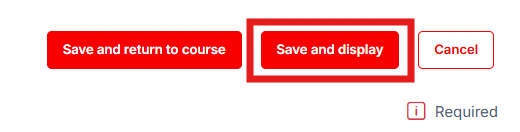
- Click Save and display.
Rubric is an advanced grading method that assesses work against defined criteria and achievement levels.
C. Open Advanced Grading
After saving the Assignment:
- Open the Assignment.
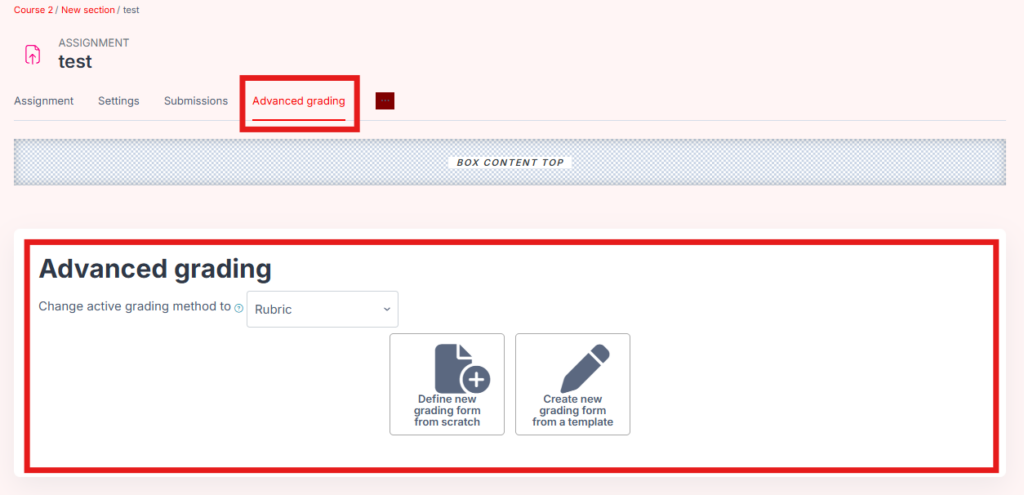
- From the Assignment navigation/menu, select:
Advanced grading
Depending on the LMS version, this may be under:
More → Advanced grading or Advanced grading Tab
- Confirm that the active grading method is:
Rubric
LMS notes that the Advanced grading option becomes available once an advanced grading method such as Rubric has been selected.
D. Create the Rubric
You should now see two options:
Define new grading form from scratch
or
Create new grading form from a template
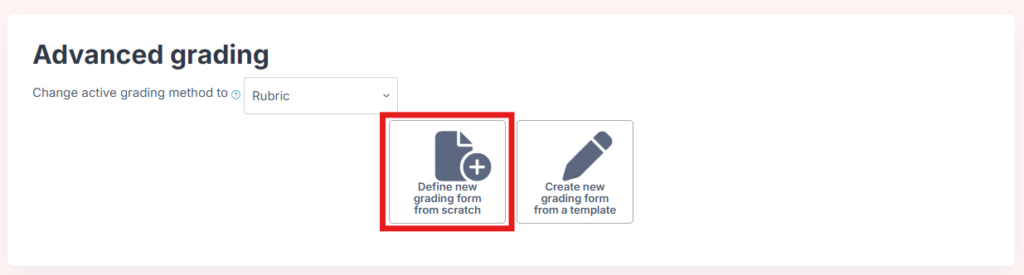
For a new rubric:
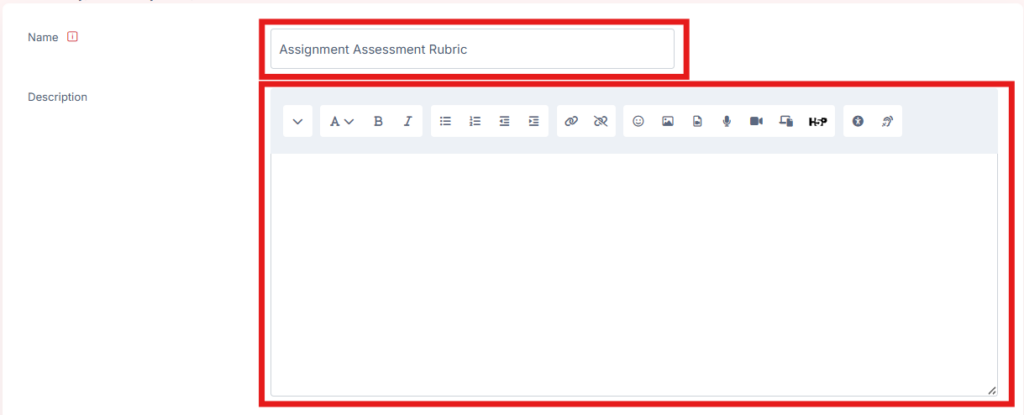
- Click Define new grading form from scratch.
- Enter a Name, for example:
Assignment Assessment Rubric
- Enter a description if required.
E. Configure the Rubric Criteria
The rubric will contain Criteria and Levels.
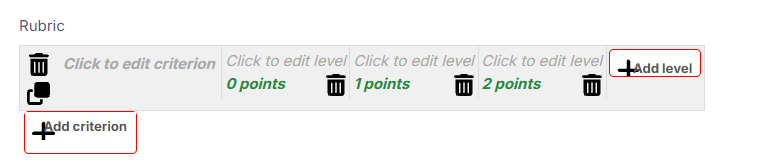
For example:
| Criteria | Poor | Satisfactory | Good | Excellent |
|---|---|---|---|---|
| Content Knowledge | 0 | 10 | 20 | 25 |
| Analysis | 0 | 10 | 20 | 25 |
| Organization | 0 | 10 | 20 | 25 |
| Presentation | 0 | 10 | 20 | 25 |
To configure it:
- Click Click to edit criterion.
- Enter the assessment criterion, for example:
Content Knowledge - Click each level and enter:
- Level description
- Points
- Click Add level if additional achievement levels are required.
- Click Add criterion to add another assessment criterion.
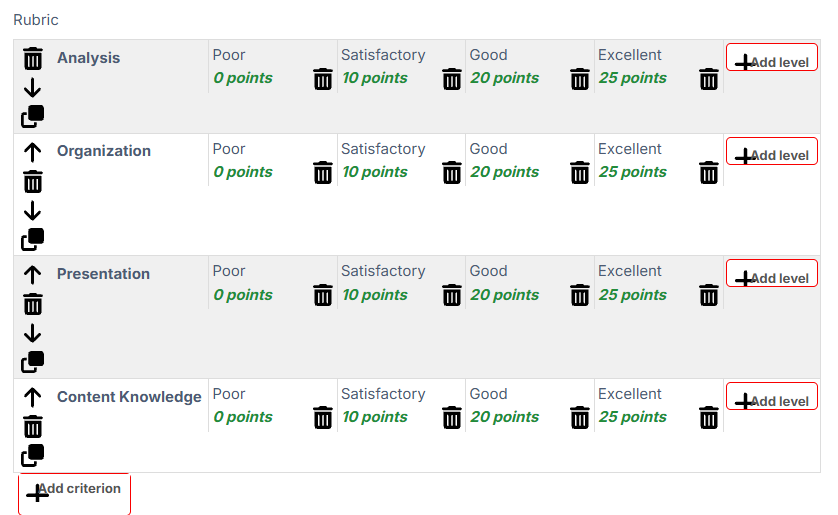
A LMS rubric consists of criteria, with multiple achievement levels and numerical scores assigned to those levels.
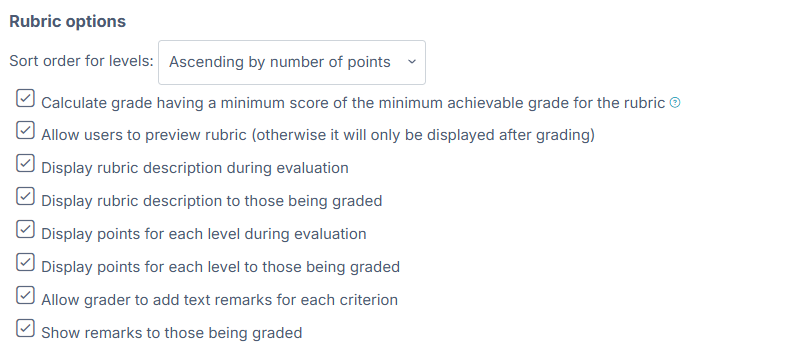
F. Configure Rubric Options
Below the rubric, review the available options. Depending on your BLMS configuration, these can include:
- Allow users to preview rubric
- Display rubric description during evaluation
- Display rubric description to those being graded
- Allow grader to add text remarks for each criterion
- Show points for each level during evaluation
- Show points for each level to those being graded
For most assessments, I recommend enabling Allow users to preview rubric so students know the assessment criteria before submitting.
G. Activate the Rubric
Once completed, click:
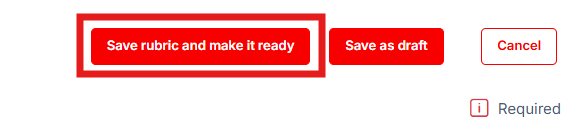
Save rubric and make it ready
Do not select only Save as draft if you want lecturers to start using it for grading.
The rubric is now linked to the Assignment.
H. Grade a Student Using the Rubric
To use it:
- Open the Assignment.
- Click View all submissions or Grade.
- Select a student’s submission.
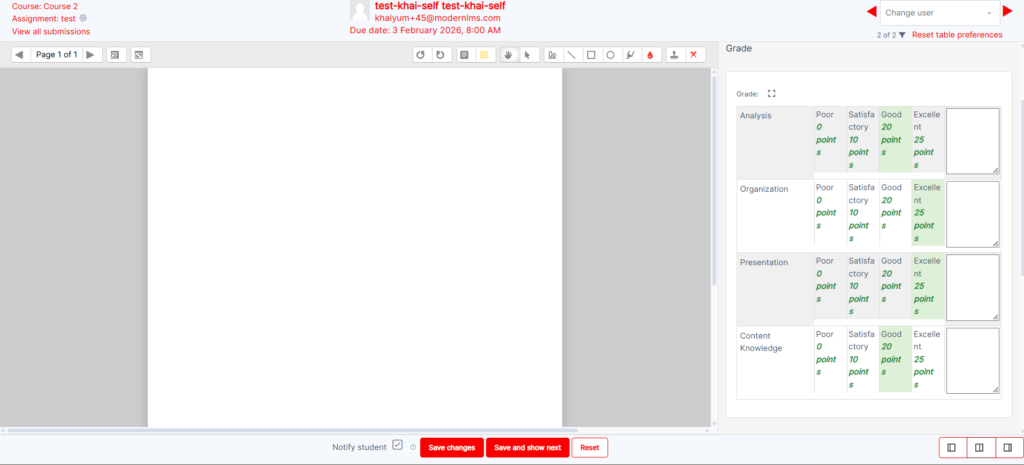
- The rubric will appear in the grading interface.
- For each criterion, click the appropriate achievement level.
- Add comments if required.
- LMS calculates the rubric score and converts it to the Assignment’s configured grade.
- Click Save changes.
LMS calculates the final assignment grade from the selected levels across the rubric criteria.
Overall flow:
Course → Assignment → Settings → Grade → Grading method: Rubric → Save → Advanced grading → Define new rubric → Add Criteria & Levels → Save rubric and make it ready → Grade students.