Popular


ModernLMS Super App – Android User Guide
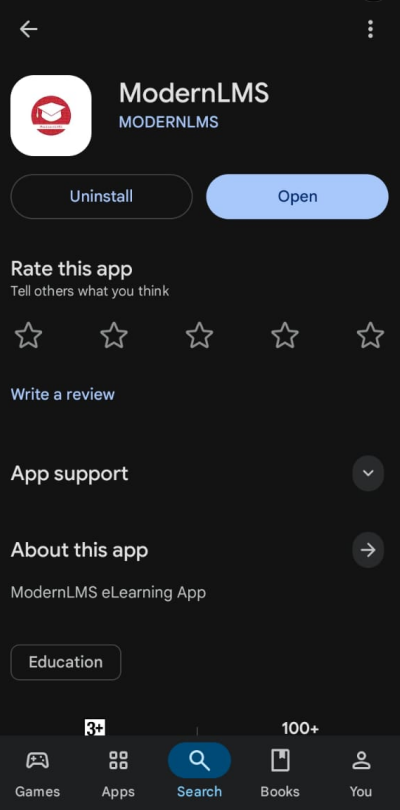
1. Install the ModernLMS Super App
- Open the Google Play Store on your Android device.
- Search for ModernLMS.
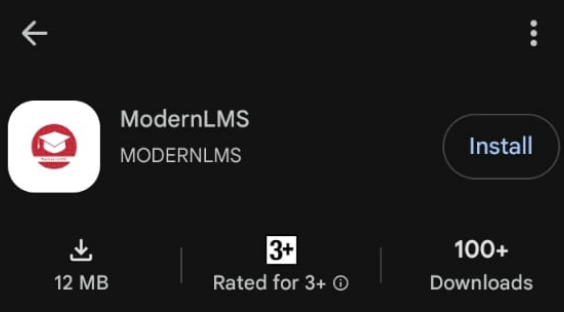
- Select the application.
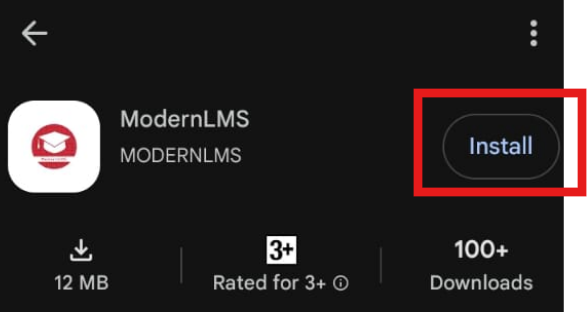
- Tap Install.
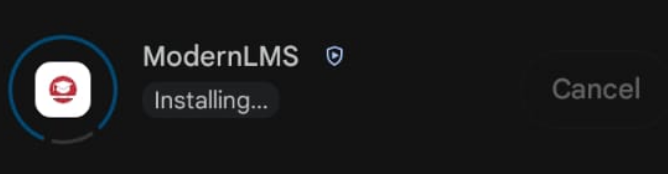
- Wait for the installation to complete.
- Tap Open to launch the application.
2. Open the App
- Locate the ModernLMS icon on your phone.

- Tap the icon to open the application.
- Allow the application to load.
Permissions may be required depending on the learning activities used in your courses.
If prompted, allow the required permissions such as:
- Notifications
- Files/Media
3. Connect to Your LMS
- On the welcome screen, select your organisation or LMS.
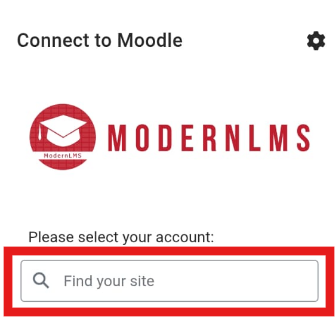
- If required, enter the LMS site address/URL provided by your organisation.
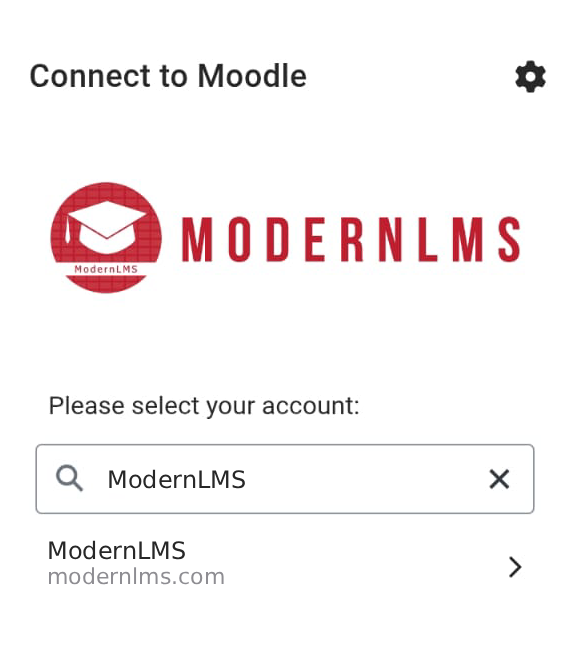
- Select on the LMS site address/URL.
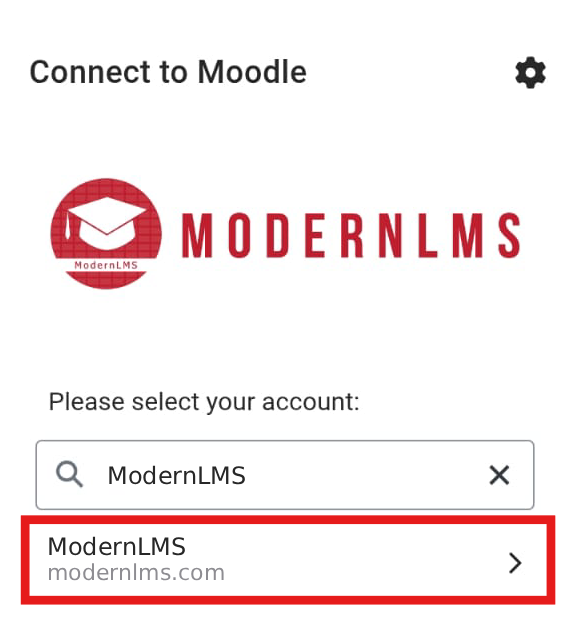
- The application will redirect you to the login page.
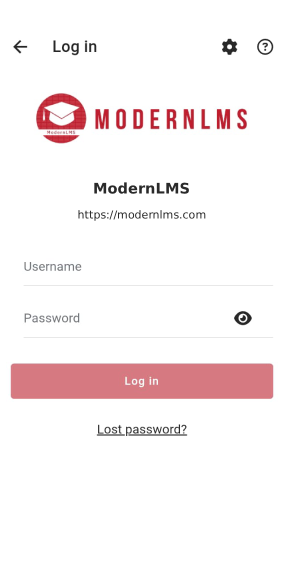
4. Log In
- Enter your registered Username/Email.
- Enter your Password.
- Tap Log In.
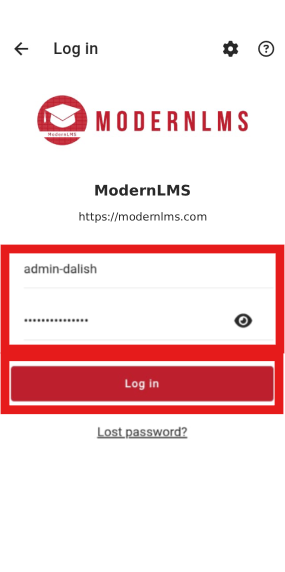
- If your organization uses Single Sign-On (SSO), select the available SSO login option.
- After successful login, you will be redirected to the application dashboard.
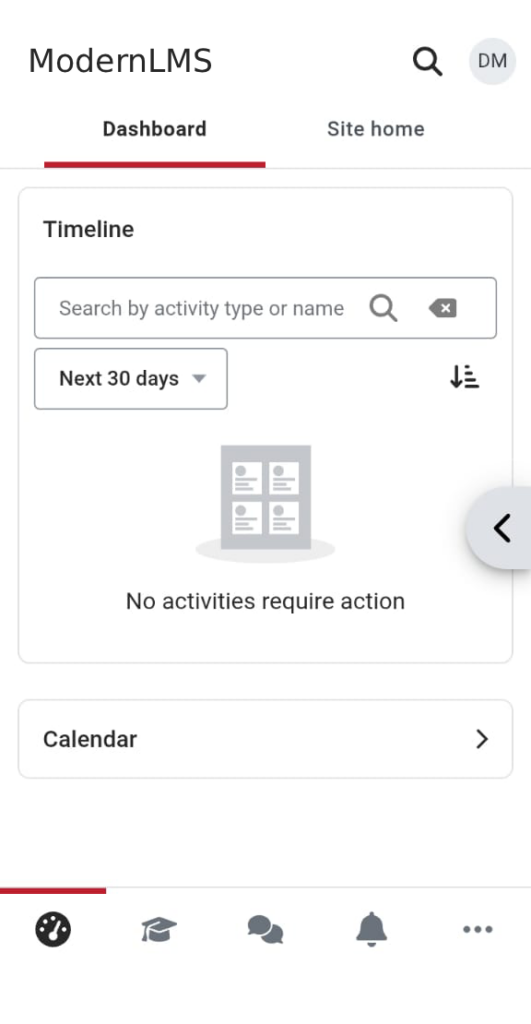
5. View the Dashboard
- The Dashboard provides access to your learning information, tap in Site home to view the available courses
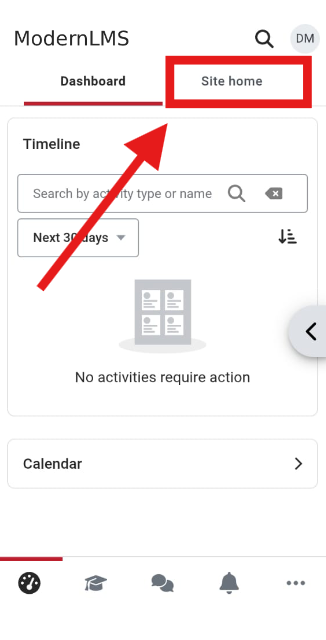
- Tap on available courses to view Enrolled courses
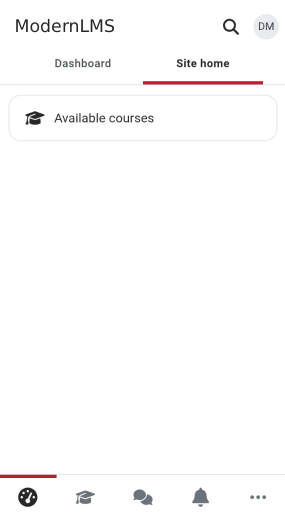
- Tap a course card to open the respective course.
6. Access a Course
- From the Dashboard, tap My Courses.
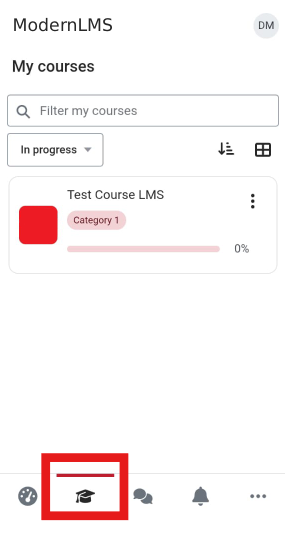
- Select the course you want to access.
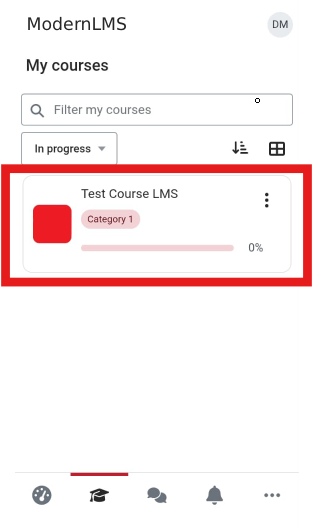
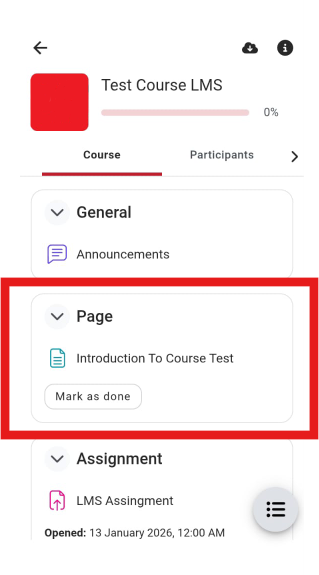
- The course page will display the available learning sections and activities.
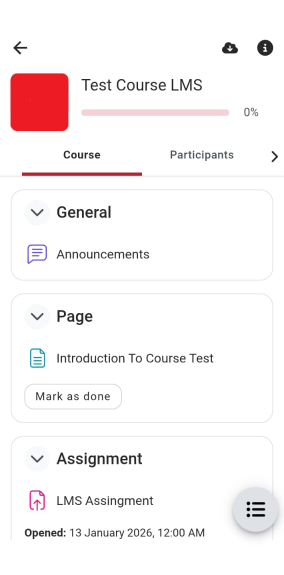
- Scroll through the course to view the learning materials.
- Tap an activity to begin.