

Popular


User Guide: Exporting Student Quiz Answers
Purpose
This guide explains how lecturers, administrators, or authorized Exam Unit users can view and export students’ complete quiz answer responses from the LMS.
Steps to Export Student Quiz Answers
Step 1: Log in to the LMS
- Open the LMS website.
- Log in using your authorized account.
- Ensure that you have permission to access the relevant course and quiz results.
Step 2: Open the Relevant Course
- Select the relevant course.
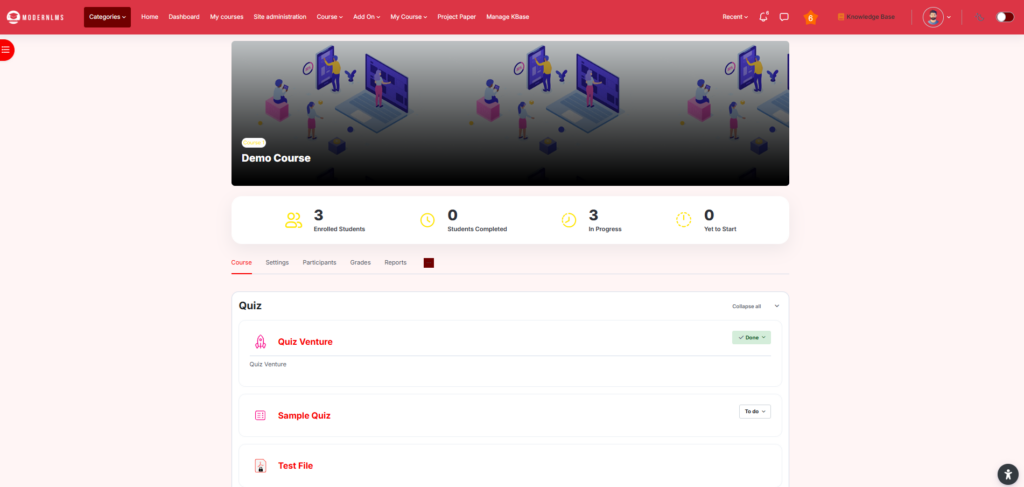
- Open the course where the quiz or examination is located.
Step 3: Open the Quiz Activity
- Locate the required Quiz activity.
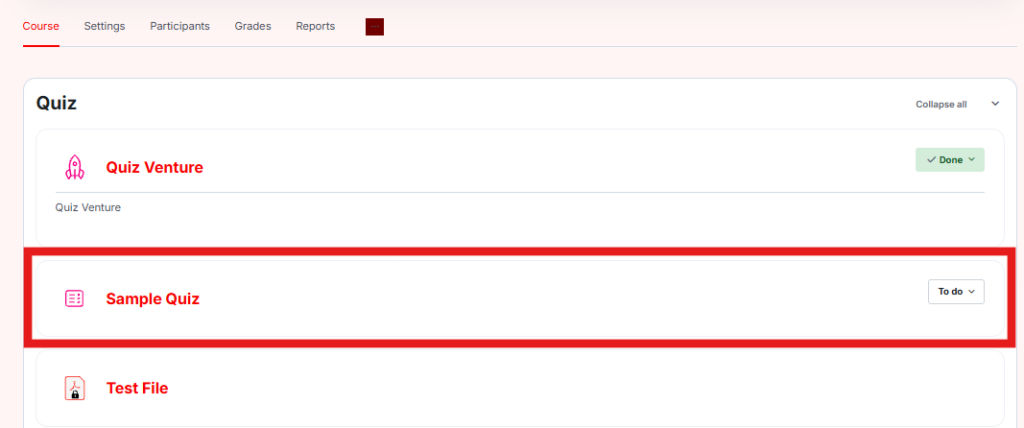
- Click the quiz name to open it.
Example:
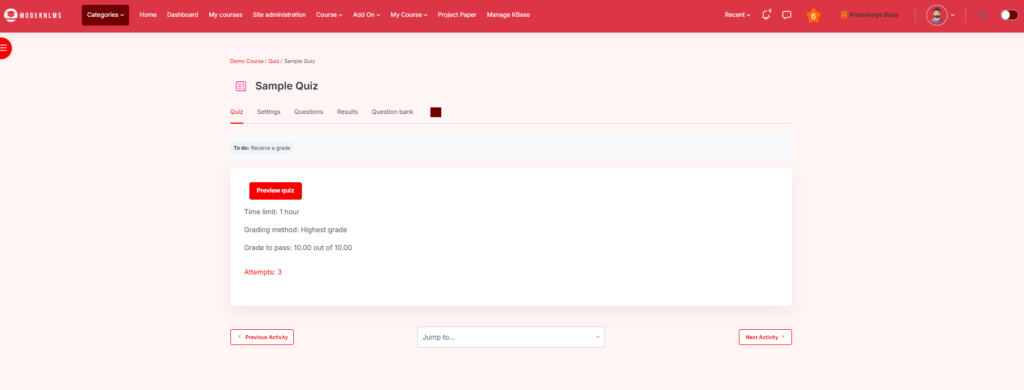
Sample Quiz
Step 4: Access the Quiz Results
- From the quiz page, click Results.
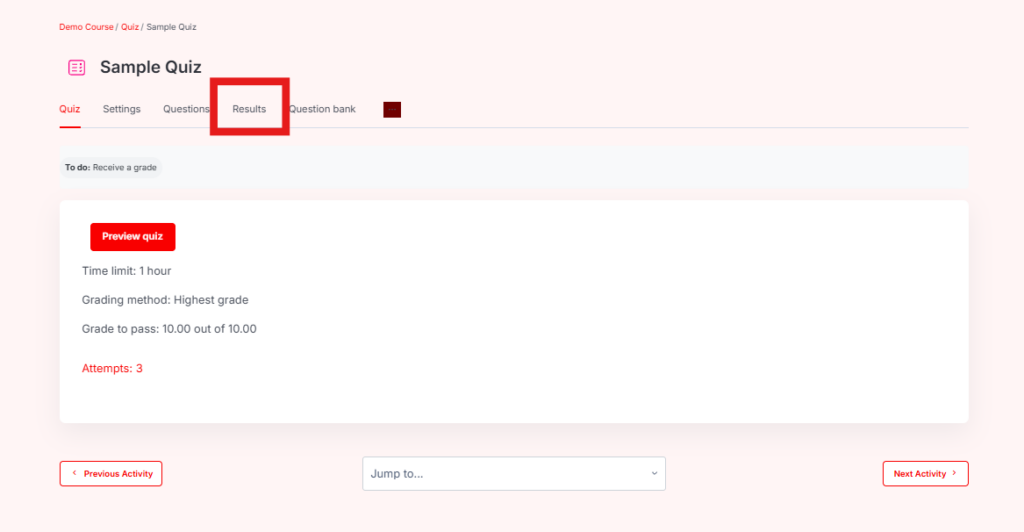
- A list of available quiz reports will be displayed.
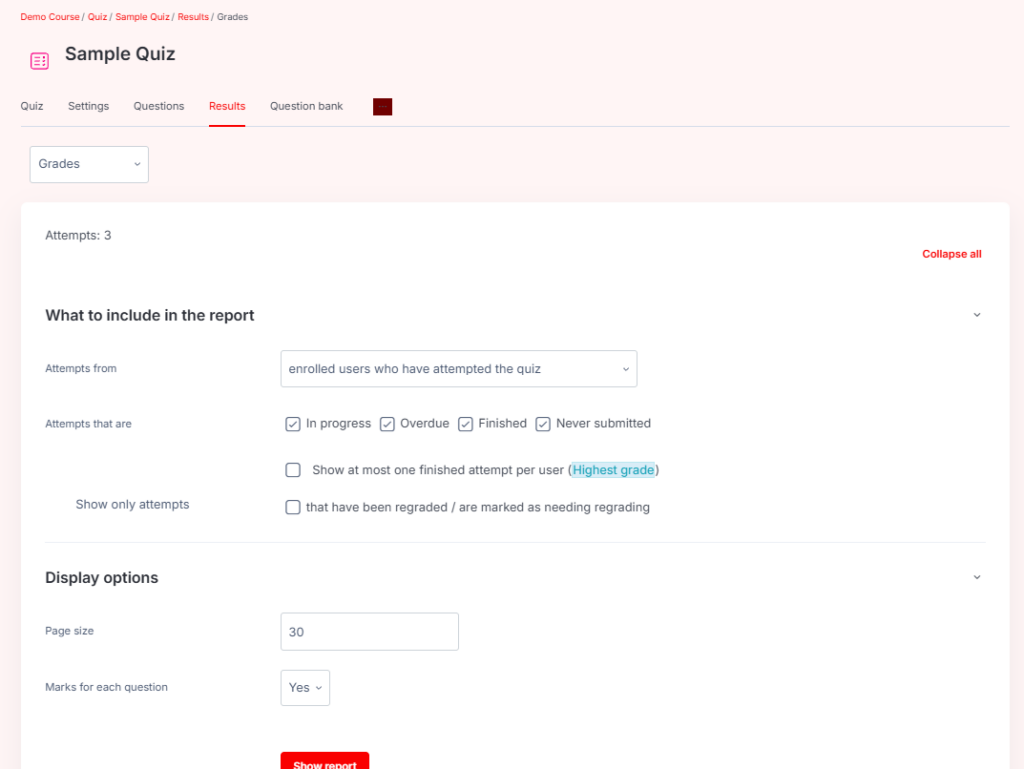
- Select Responses.
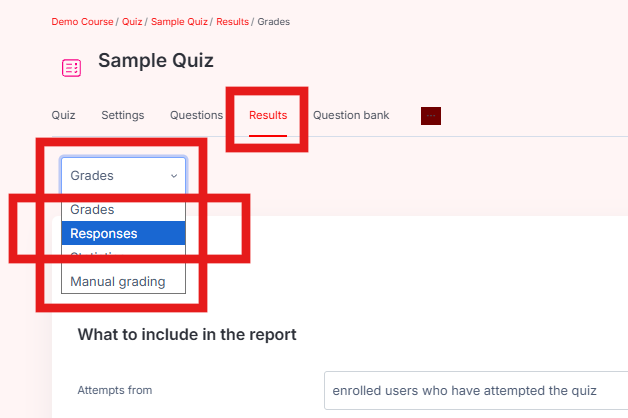
Navigation:
Course → Quiz → Results → Responses
Step 5: Configure the Response Report
Under the report settings, select the student attempts that should be included.
Recommended settings:
- Include students who have attempted the quiz.
- Include completed attempts.
- Enable Question Text if the actual quiz questions need to be displayed.
- Enable Right Answer if the correct answer needs to be shown together with the student’s response.
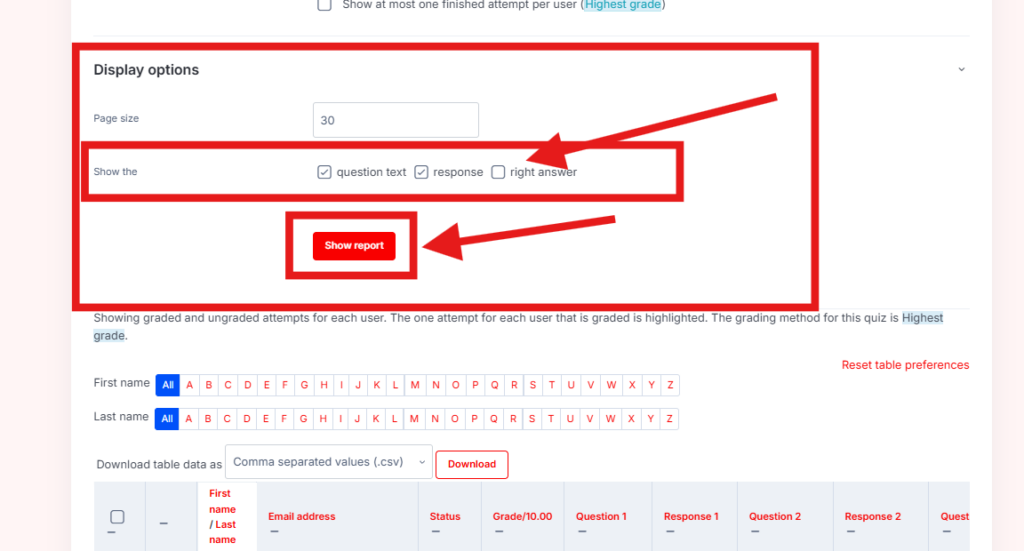
For quizzes with randomized questions, it is recommended to enable Question Text so the Exam Unit can identify which question was presented to each student.
Step 6: Generate the Report
- After selecting the required options, click Show Report.
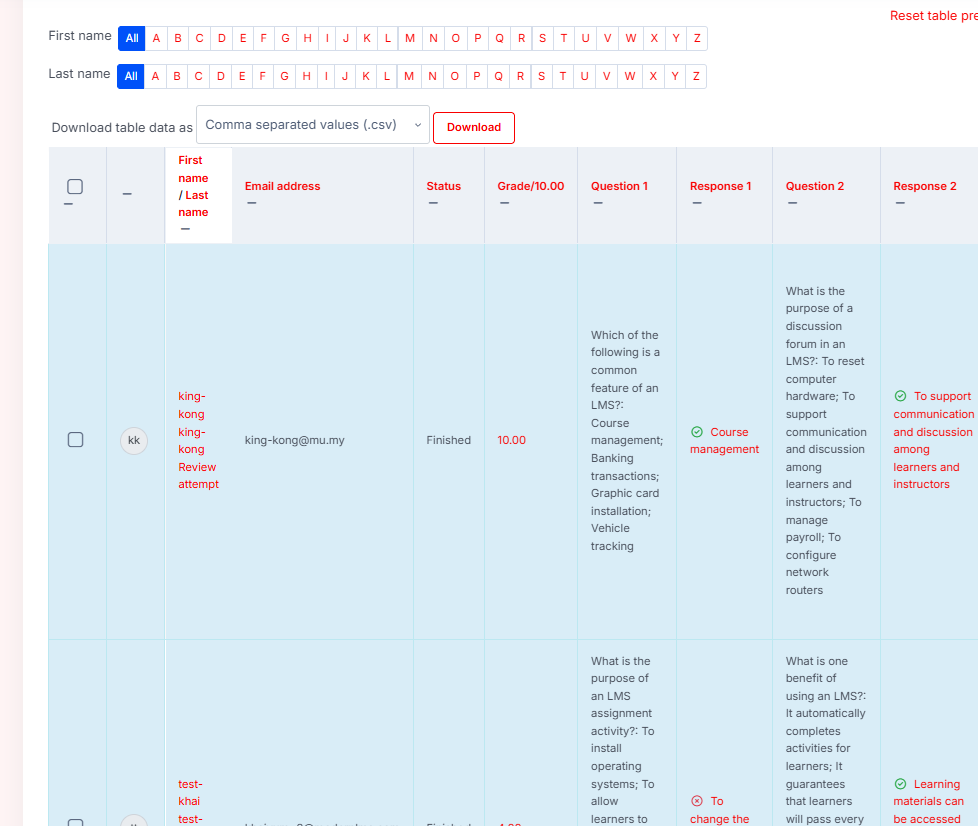
- The system will display the students’ quiz responses.
The report normally includes information such as:
- Student name
- Quiz attempt information
- Question
- Student’s submitted answer
- Correct answer, if enabled

Step 7: Review the Student Responses
Review the displayed information before exporting.
Each row represents a student’s quiz attempt, while the question columns show the responses submitted by the student.
If there are many students, use the available filters or pagination to review the records.
Step 8: Export the Quiz Responses
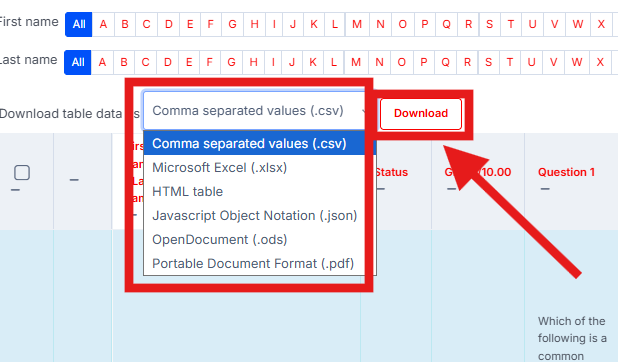
- Scroll to the Download table data as section.
- Select the preferred file format.
Recommended format:
Microsoft Excel (.xlsx)
Other available formats may include:
- CSV
- OpenDocument Spreadsheet (.ods)
- HTML
- JSON
- Click Download.
Step 9: Open the Exported File
- Locate the downloaded file on the computer.
- Open the file using Microsoft Excel.
- The Exam Unit can then review, filter, sort, or archive the student responses.

Important Note
The following type of link:
/mod/quiz/review.php?attempt=23991
is used to review an individual student’s quiz attempt.
It is suitable when checking one student’s answers individually.
For downloading responses from multiple students, use:
Quiz → Results → Responses
instead.
Recommended Settings for Exam Unit
For examination record purposes, it is recommended to export the report with:
- All completed student attempts
- Question Text enabled
- Student Responses enabled
- Right Answer enabled, if required
- Microsoft Excel (.xlsx) as the export format
This provides a clearer record of the questions presented to students and the answers submitted during the examination.